How to OCR a PDF: Step-by-Step Guide with Screenshots
Learn how to convert scanned PDFs into selectable, searchable text in your browser. Fast, accurate, with no file uploads to Utilvo's servers.
Launch Utilvo's client-side OCR engine to recognize characters instantly with zero server uploads.
Why Client-Side PDF OCR Improves Privacy
Scanned PDF files often contain highly sensitive personal and organizational data: signed NDAs, hospital admittance records, identity documents, bank statements, or confidential business proposals. Traditional online OCR web services require uploading the entire high-resolution image stream across public networks to remote server clusters, where proprietary optical engines process and temporarily store raster data on cloud disks.
Utilvo takes a fundamentally different engineering approach. Our optical character recognition engine compiles neural LSTM recognition models and image preprocessing algorithms directly into WebAssembly running in your local browser sandbox. Because the optical character recognition runs locally in your browser, there is no need to upload scanned pages to a remote server before downloading or copying the extracted text. This client-side architecture guarantees zero server retention and reduces privacy risks associated with uploading confidential documents to a third-party processing server.
Step 1: Selecting and Adding Your Scanned Document
Open the OCR PDF Tool. The tool features an intuitive drag-and-drop workspace capable of ingesting image-only PDF files as well as raw bitmap document scans (PNG, JPG, TIFF).
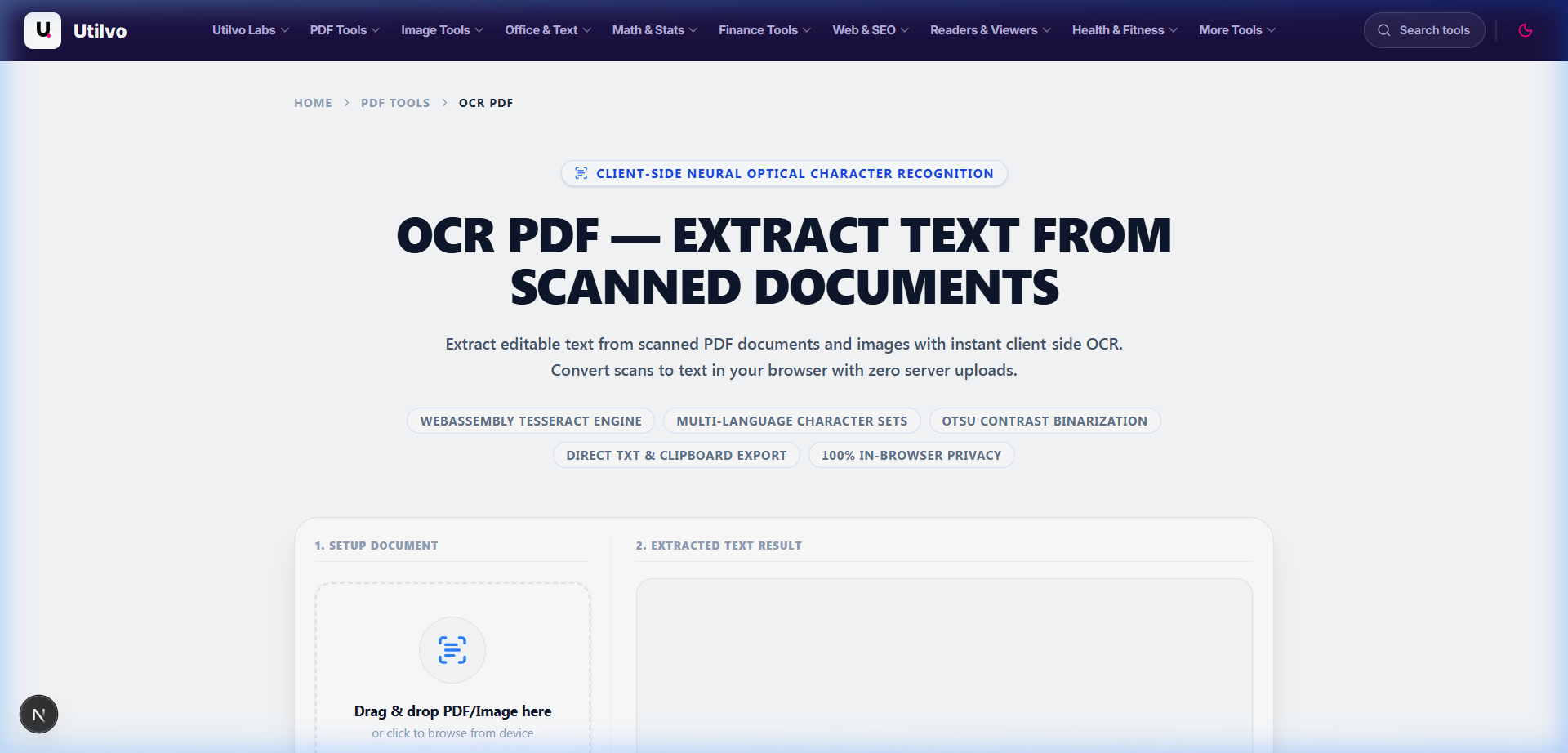
Pro Tip: Distinguishing Scanned Images from Native Vector Text
Before running OCR, test if your cursor can highlight words inside the document viewer. If you can select and highlight text with your cursor, the PDF already possesses digital font streams and does not require OCR. If clicking highlights the entire page as a single image rectangle, it is an image-based scan that will benefit directly from character recognition.
Step 2: Configuring Recognition Language and Document Preprocessing
Upon file ingestion, the workspace displays document metadata, a visual thumbnail preview of the target page, and language selection options. The engine prepares an in-memory canvas buffer to optimize recognition accuracy before running neural character matching.
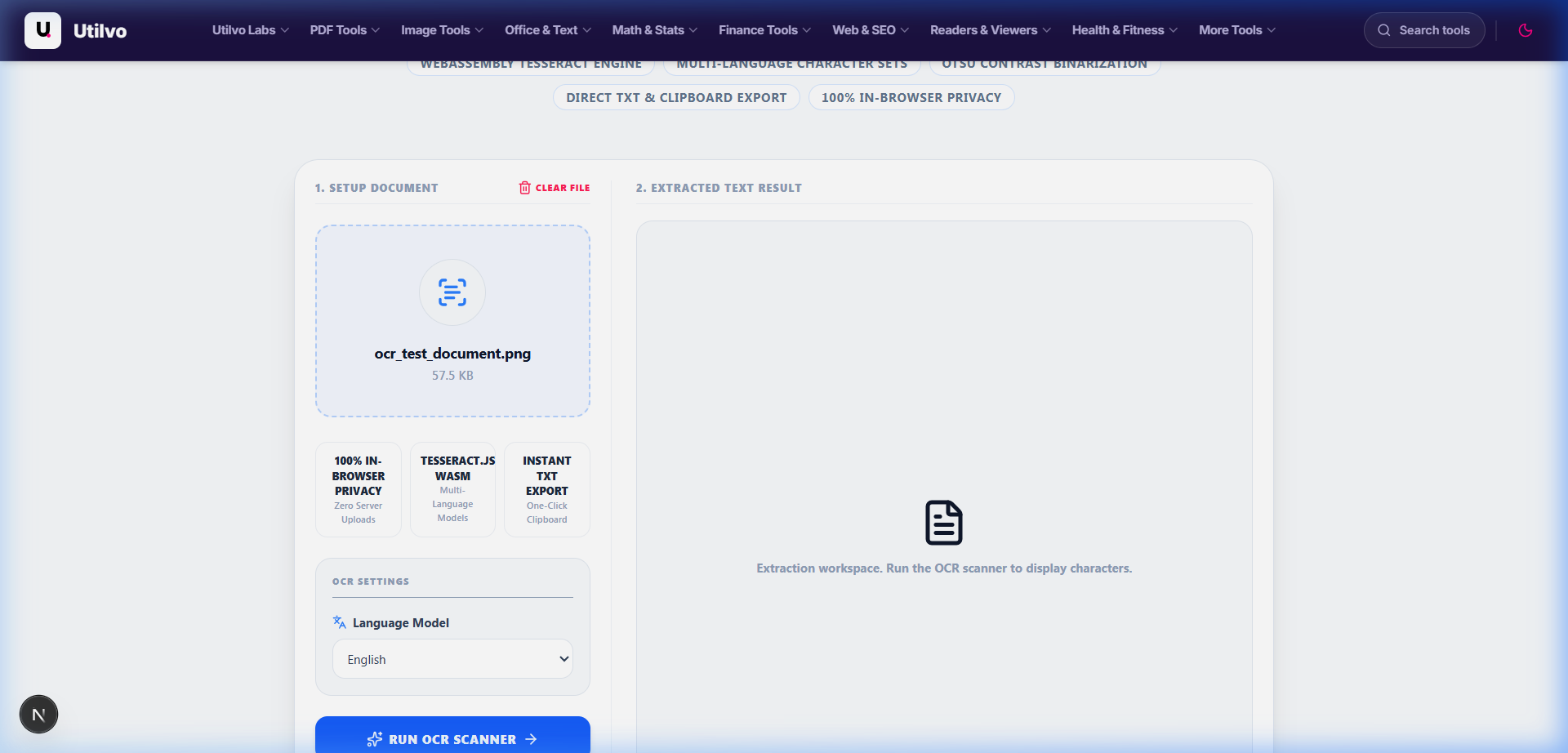
Selecting the Target Recognition Language Model
Matching the document language to the correct trained LSTM model significantly reduces misinterpretation of diacritics, accents, and localized punctuation. Utilvo provides optimized language profiles for English, French, German, Spanish, Italian, and Portuguese.
Adaptive Otsu Binarization and Contrast Enhancement
Scanned documents frequently suffer from paper discoloration, uneven shadows from mobile camera captures, or ink bleed-through. Our client pipeline automatically converts color raster streams into high-contrast monochrome bitmaps using adaptive thresholding, separating character ink strokes cleanly from noisy page backgrounds.
Client Web Worker Thread Isolation
Neural image convolution is computationally intensive. Utilvo spawns a background dedicated Web Worker to process optical calculations in parallel, ensuring your browser UI remains fully responsive and smooth throughout the recognition pass.
Step 3: Extracting, Copying, and Exporting Searchable Text
Click Run OCR Scanner. The real-time progress terminal monitors character recognition, line-by-line bounding box detection, and text assembly. Upon completion, the recognized content renders immediately into an interactive, editable text console.
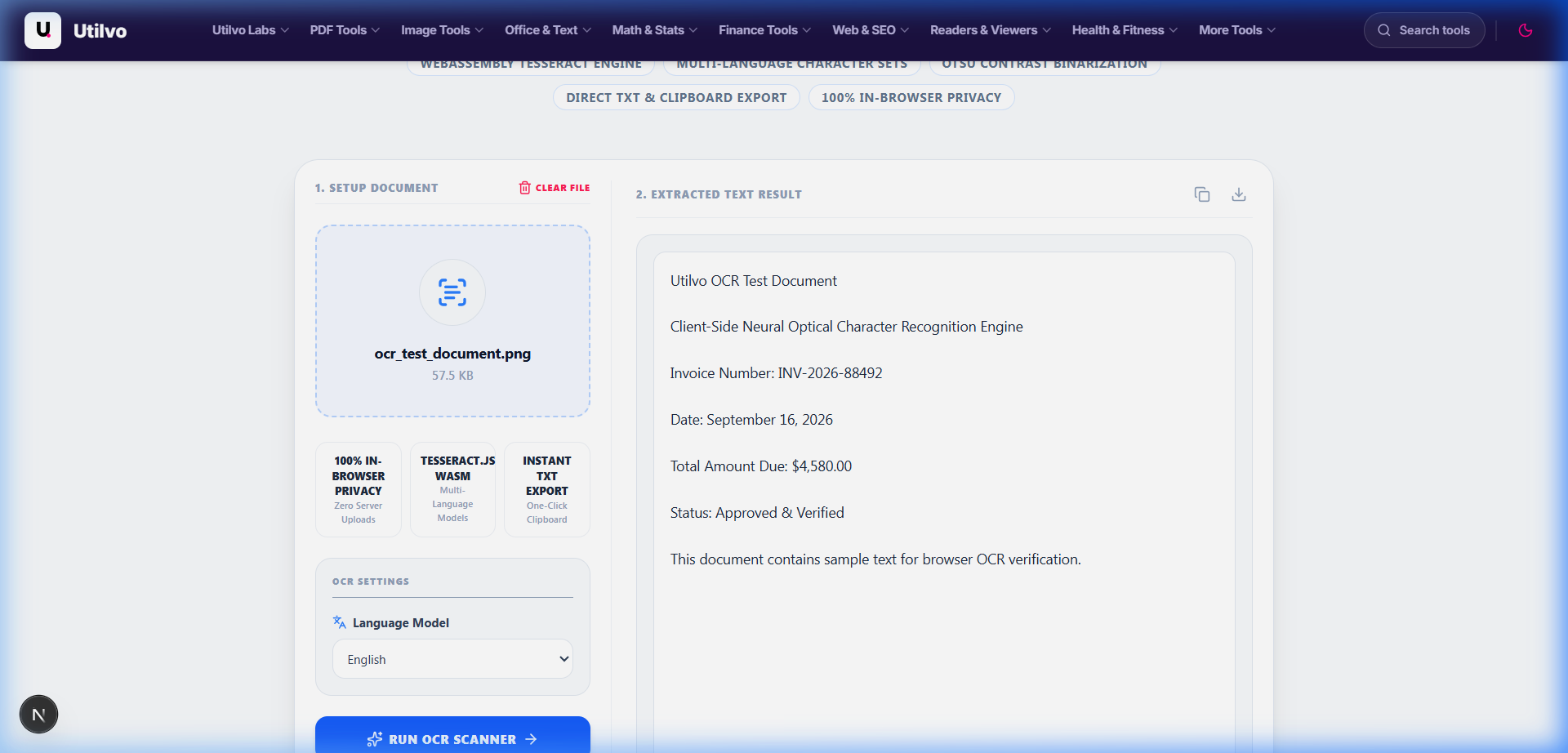
One-Click Clipboard Copying and TXT Export
You can instantly copy the recognized text to your system clipboard by clicking Copy Text, or save it as a structured UTF-8 text file via Download TXT. If you want to create an invisible text overlay directly inside the PDF for Ctrl+F searchability, explore our companion OCR PDF Searchable tool.
Technical Architecture Comparison: Local vs. Cloud PDF OCR
Evaluating client-side browser-based optical character recognition against traditional cloud conversion services:
| File handling | Utilvo | Server-based converters |
|---|---|---|
| File upload | Files remain in your browser | Files are uploaded to a remote server |
| Processing | Client-side (WebAssembly / browser memory) | Server-side queue |
| Download | Generated locally in memory | Processed file returned from server |
| File privacy | No PDF upload to Utilvo's servers | Files stored temporarily on remote disk |
| Document limits | Generous limits bound by available device memory | Frequently capped by 25MB or 50MB file size paywalls |
Common OCR Recognition Pitfalls and How to Avoid Them
Follow these essential scanning best practices to maximize optical character recognition accuracy across all your document workflows:
Low Resolution Scans Below 200 DPI
Images captured below 150 DPI produce pixelated glyph contours, causing the engine to misread numbers like 8 as 3 or letters like "rn" as "m". Always scan documents at 300 DPI for pristine optical recognition.
Rotated or Skewed Document Orientations
Text lines tilted more than 5 degrees disrupt horizontal baseline detection. Use our Rotate PDF tool to orient all pages right-side up before running OCR.
Complex Multi-Column Newspaper Layouts
Multi-column brochures or financial balance sheets can occasionally cause horizontal reading order mix-ups. Pre-crop specific tables or paragraphs using our Crop PDF tool for targeted extraction.
Frequently Asked Questions
Answers to common technical questions regarding client-side optical character recognition, languages, and DPI fidelity.
Can Utilvo OCR handwritten notes and cursive signatures?
Utilvo is optimized for machine-printed typography including invoices, legal agreements, academic journals, and scanned books. While neatly printed handwriting can occasionally be parsed, cursive script and freehand annotations typically produce low confidence scores. For specialized handwriting recognition, dedicated neural handwriting engines are recommended.
Does running OCR in the browser consume server credits or upload my document?
No. Utilvo loads a pre-compiled WebAssembly neural optical character recognition engine directly into your local browser session. Recognition calculations, image thresholding, and glyph matching take place purely inside client device memory. No document pixels or extracted text strings are ever transmitted to Utilvo's servers.
What image resolution (DPI) produces the most accurate OCR results?
For optimal character recognition accuracy, source PDF scans should ideally be rendered between 200 and 300 DPI. Resolutions below 150 DPI can cause character merging (such as 'rn' being misread as 'm'), while resolutions exceeding 400 DPI increase memory consumption without delivering meaningful accuracy gains.
Which languages are supported by the client-side OCR engine?
Utilvo supports major international languages including English, Spanish, French, German, Italian, Portuguese, and Dutch. Language-specific trained LSTM models are loaded on demand into browser cache to maximize recognition accuracy for accented glyphs and localized character sets.
Can I export the recognized output as both plain text and a searchable PDF?
Yes. Once the OCR engine finishes processing, you can copy the plain extracted text directly to your clipboard, export it as a standalone .txt file, or use our companion PDF tools to generate a searchable dual-layer PDF with an invisible text overlay positioned above the scanned image.
Related PDF Tools & Guides
OCR PDF Tool
Extract editable, copyable text from scanned paper documents and image PDFs in your browser.
OCR PDF Searchable
Create dual-layer PDFs with invisible searchable text layers positioned over scanned images.
All Guides & Tutorials
Browse our complete directory of step-by-step PDF optimization and management tutorials.