Pages: Add, Resize, Rotate, Reorder, Merge, and Add Headers / Footers / Bates
The Pages group of the Advanced PDF Editor ships with 8 tools: seven for managing page structure (add, resize, delete, rotate, reorder, insert, header-footer) and one composite overlay modal — the Header / Footer / Bates editor. Together they cover everything from assembling a multi-PDF deliverable to numbering the pages for legal discovery.
UTILVO-00001 on page 1 → UTILVO-00002 on page 2.
The 8 Pages Tools at a Glance
The Pages group is the structural workhorse of the editor: it lets you reshape the document before you mark it up. Each tool is one click in the toolbar — no multi-step dialogs.
add-pageInserts an empty letter-sized page at the cursor position. Useful for adding a cover, signature page, or appendix.
resize-pageChanges page dimensions. Letter, A4, A3, Legal, and custom dimensions supported.
delete-pageRemoves the current page. The remaining pages re-index automatically.
rotate-leftRotates the current page 90° counter-clockwise. Useful for pages scanned sideways.
rotate-rightRotates the current page 90° clockwise.
reorder-pagesOpens the page list for drag-to-reorder rearrangement. Pages are renumbered after.
insert-pdfMerges another PDF into this document. Choose where to insert (before/after current page).
header-footerOpens the overlay modal for header, footer, and Bates configuration. Covered in detail below.
Page Management Operations
Before you stamp a header on every page, you usually want the page structure right. Here is what each tool does — and when to reach for it.
Add Blank Page
add-pageInserts an empty letter-sized page (8.5 × 11 in / 612 × 792 pt) at the current cursor position. Use this when the source PDF needs a cover sheet, a signature page, or an appendix. To change the page size after insertion, use Resize Page.
Resize Page
resize-pageChanges the dimensions of every page in the document (or just the current page, depending on the modal). Letter, A4, A3, A5, and Legal are predefined. Custom dimensions accept any width × height in points. Existing content is not re-flowed — it stays anchored to its original coordinates.
Delete Page
delete-pageRemoves the current page. The remaining pages re-index automatically. Heads up: Bates numbering continues from the next page, so deleting page 3 in a Bates-stamped document leaves a visible gap (UTILVO-00001, UTVO-00002, UTILVO-00004, …). For accounting and legal-discovery workflows, prefer Reorder Pages + Insert PDF to substitute a replacement page instead of deleting.
Rotate Left & Rotate Right
rotate-left / rotate-rightRotates the current page 90° counter-clockwise or clockwise. Common when a scanned page is sideways. The rotation is stored in the page's /Rotate entry — it does not re-render the page's content.
Reorder Pages
reorder-pagesOpens the page list in the right panel. Each page appears as a draggable thumbnail with its current index. Drag to rearrange; release to commit. Bates stamps and headers are preserved across the new order — but you may want to re-export and re-apply Bates if your numbering convention depends on the final page order.
Insert PDF
insert-pdfMerges another PDF into this document. A file picker opens; choose the source PDF; choose Insert before or Insert after the current page. All pages of the source PDF are merged, preserving annotations and form fields.
Header & Footer Modal — Three Tabs
Clicking the Header / Footer tool opens a modal with three independent tabs: Header, Footer, and Bates. Each tab has its own enable switch and settings panel, so you can enable a header and Bates but skip the footer (or any other combination) — there is no forced interlock.
Header Tab
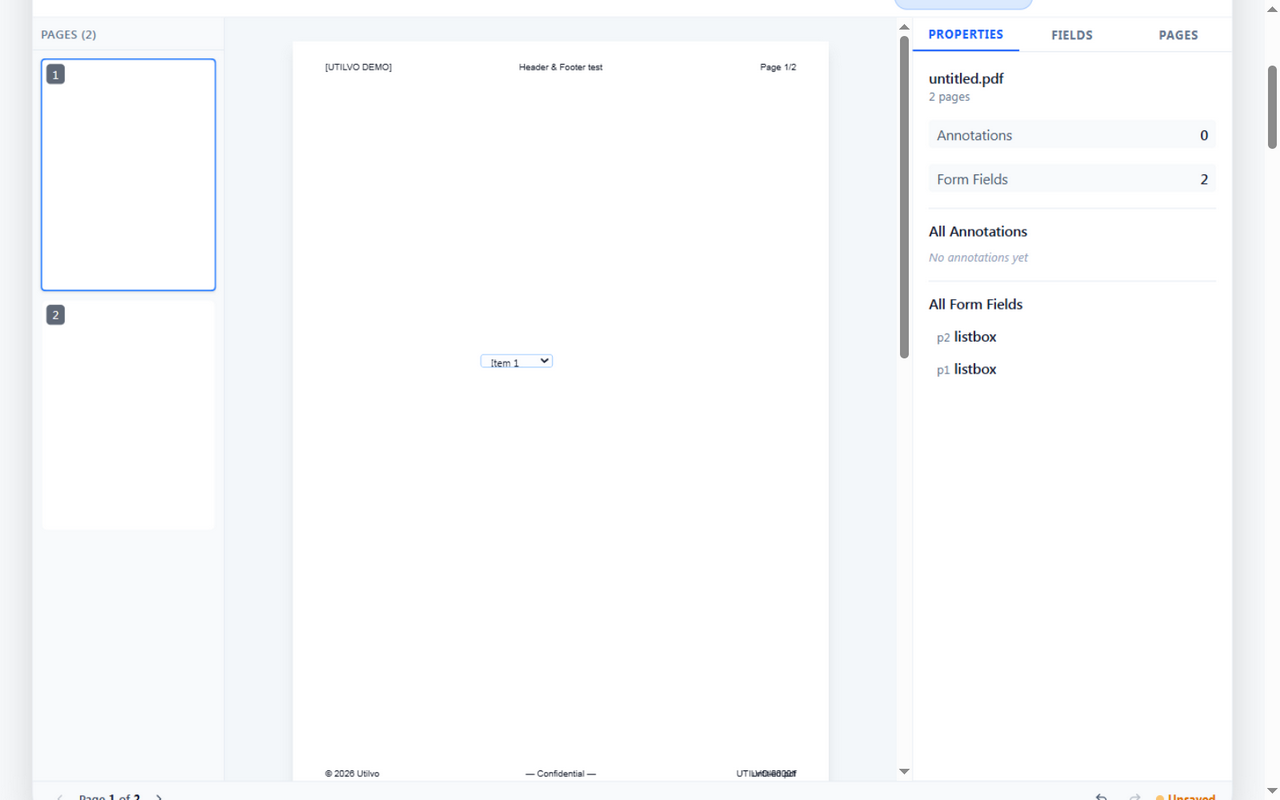
The Header tab draws a 3-column row at the top of every page: left, center, right. Each cell accepts literal text mixed with tokens. Configure the font family, size, weight, color, the top margin, and the side margin separately. A toggle enables a different first page header — useful when page 1 is a title page and you don't want a header bleeding into it.

When enabled, page 1 of the document uses a first-page header (typically empty or minimal), and pages 2+ use the regular three-column header. This is the standard pattern for title pages, invoices with a "QUOTE" header on page 1, and academic papers where page 1 should be uncluttered.
Footer Tab
The Footer tab mirrors the Header structure — three columns, identical typography controls — but uses a bottom margin instead of a top margin. The default footer preset is © 2026 Utilvo / — Confidential — / {filename}, which renders on every page.
Bates Tab
Bates numbering stamps each page with a unique, sequential identifier — the legal-discovery standard for tracking pages through review and production. Configure the prefix, digit count, starting value, step, and a position grid (Top/Bottom × Left/Center/Right). The starting value persists across re-runs so a multi-batch deliverable keeps numbering continuous.
A typical Bates stamp looks like UTILVO-00001. The prefix is your firm or matter name; the digit count controls zero-padding (5 digits = up to 99,999 pages per batch); the start value defaults to 1 but can be set higher to continue numbering from a prior batch.
Live Test: UTILVO-00001 on Page 1
Below is the actual output of a real session: header text [UTILVO DEMO] / Header & Footer test / Page {page}/{total}, footer text © 2026 Utilvo / — Confidential — / untitled.pdf, and a Top-Right Bates stamp with prefix UTILVO-, 5 digits, start 1, step 1.
Dynamic Tokens
Inside any header, footer, or Bates text input, you can mix literal text with tokens. Tokens are expanded at render time on each page.
| Token | Expands to |
|---|---|
| {page} | Current page number |
| {total} | Total page count |
| {date} | Today's date (locale-formatted) |
| {time} | Current local time |
| {filename} | Original PDF file name |
| {title} | PDF document title metadata |
First-page exception workflow
The most common Bates pitfall is a title page getting stamped with UTILVO-00001, then the second page getting UTILVO-00002 — but a real review might want the title page unstamped (it's a cover sheet, not part of the evidentiary production).
- Open the Bates tab and enable Bates.
- Set position to Bottom-Right (or whichever corner the production team prefers).
- Open the Header tab and enable the Different first page toggle. Set the first-page header to empty (or to a non-Bates caption).
- Page 1 renders with no header overlay; Bates stamps still draw because Bates and Header are independent toggles.
Further Reading
- Wikipedia — Bates numbering— Edgar A. Bates, the legal-discovery origin, and modern e-discovery practice.
- Wikipedia — Portable Document Format— header/footer page rendering and the page-content pipeline.
Frequently Asked Questions
What is Bates numbering?
Bates numbering is a legal-discovery convention (named after Edgar A. Bates) that stamps every page of a document set with a unique sequential identifier. It is used in litigation, e-discovery, accounting audits, and medical record production.
Do Bates numbers survive if I export and re-import?
Yes. The Bates stamp is burned into the page graphics stream, not stored as a separate layer, so the numbers are visible even after the PDF is flattened or re-printed.
Can I have different text in the header vs. footer?
Yes. The modal exposes two independent tabs (Header and Footer), each with its own enable switch and 3-column text inputs (left / center / right).
What dynamic tokens can I use?
{page} (current page), {total} (total pages), {date} (today's date), {time}, {filename}, and {title} — all are expanded at render time on every page.
Can the Bates step skip numbers?
Yes. The Step field accepts any positive integer. Use Step=2 to stamp every other page (e.g. 00001, 00003, 00005).
Next: Edit Text on a PDF
Learn the actual text-edit pattern Utilvo supports: Whiteout + Text overlay, plus how the OCR Scan tool really behaves.
Read: Edit Text & OCR