How to Use the Advanced PDF Editor: Complete Browser-Based Guide with Screenshots
The Utilvo Advanced PDF Editor is a 100% client-side, full-featured PDF workstation that runs entirely inside your browser tab. It bundles 60+ tools — annotations, AcroForm fields, Bates numbering, OCR, digital signatures, and password protection — into a single workspace. This guide is your map of every toolbar group, with screenshots from real sessions and links to the deep-dive tutorials for each major feature.
Open the live tool, drop any PDF, and start editing — nothing leaves your device.
What Is the Utilvo Advanced PDF Editor?
The Advanced PDF Editor is Utilvo's flagship document workbench. It is designed to replace the heavyweight desktop PDF suites (Adobe Acrobat Pro, Foxit PhantomPDF, Nitro) for the most common editing, signing, and form-filling tasks — without requiring an install, an account, or an internet round-trip after the page loads.
The editor uses two battle-tested open-source libraries: pdf-lib for reading and writing PDF objects, and pdf.js (the same renderer used by Firefox) for high-fidelity page rasterization. Together they cover the vast majority of the PDF specification (ISO 32000) in your browser.
Inside the Editor Workspace
When you open the editor, three zones are visible at once: a contextual toolbar across the top that changes based on the active tool group, a vertical Pages sidebar on the left, and a centered page canvas showing the live document. Every region is interactive — clicking a thumbnail scrolls to that page, clicking a page activates the current tool, and clicking the toolbar icons switches tool groups.
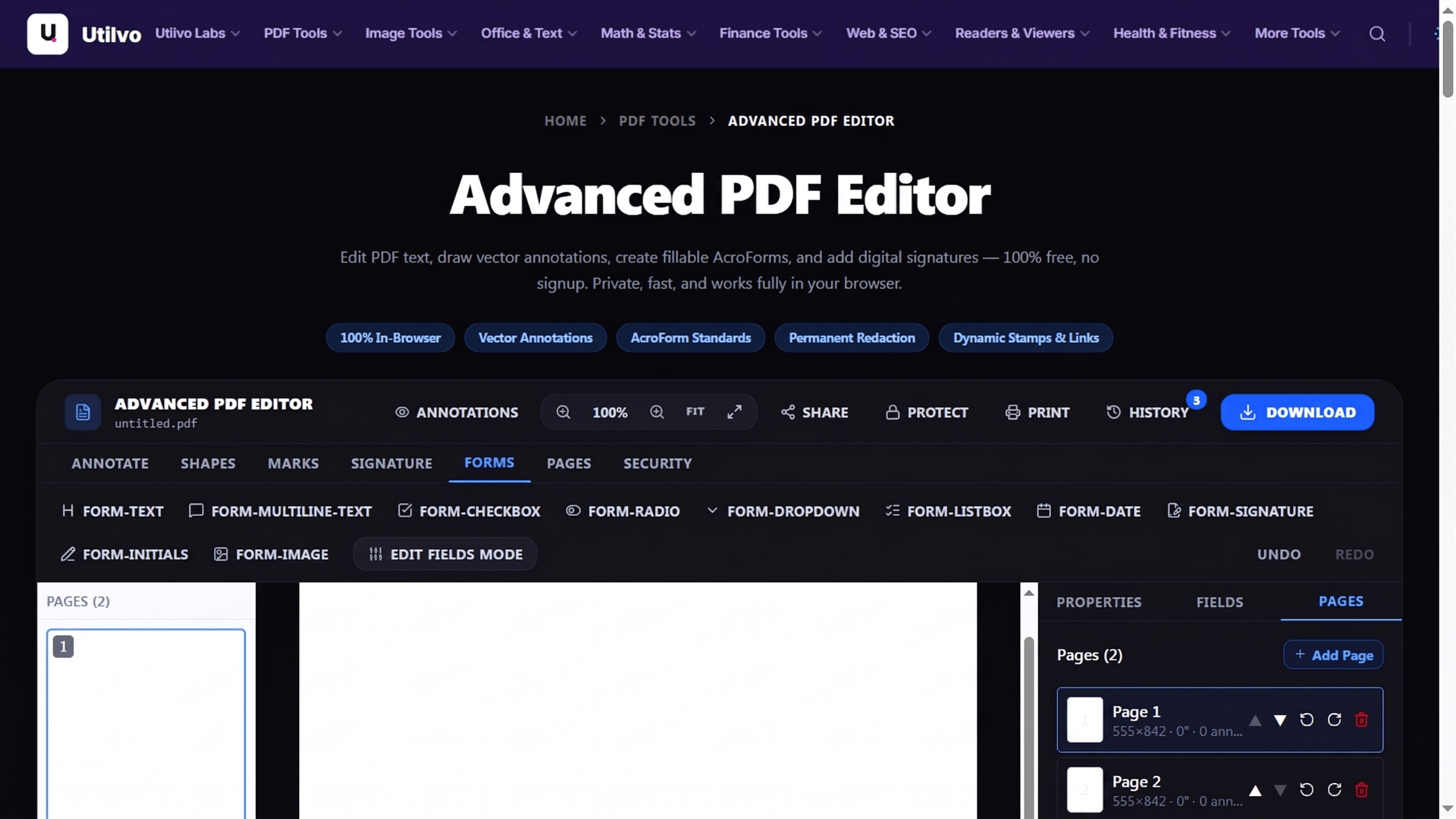
The Five Toolbar Groups
The top toolbar is organized into logical groups so you always know where to look. Click a group header to reveal its tools; the active group stays expanded until you switch. Each group has a dedicated deep-dive guide linked below.
How to Annotate PDF Documents
Highlights, sticky notes, free-draw, stamps, links and tables — every markup tool in the Annotate group.
Read the guideHow to Create Fillable PDF Forms
Add text inputs, checkboxes, radio buttons, dropdowns, listboxes, date pickers, signature and image fields — full AcroForm coverage.
Read the guideHow to Add Headers, Footers and Bates Numbers
Configure running text per page, dynamic tokens ({page}, {total}, {date}), and sequential Bates stamps across the document.
Read the guideHow to Edit Text and Run OCR on a PDF
Modify the existing text layer inline, or OCR scanned image-only PDFs to create a fully editable text layer.
Read the guideHow to Protect and Sign PDF Files
Apply passwords, redact content, and create digital signatures — fully compliant with ISO 32000.
Read the guideFrom Upload to Download in Five Steps
Even though the editor exposes 60+ tools, the typical workflow is short. The screenshot below shows what you can achieve in under a minute: open the tool, drop a file, place a Bates stamp and a form field, and export.
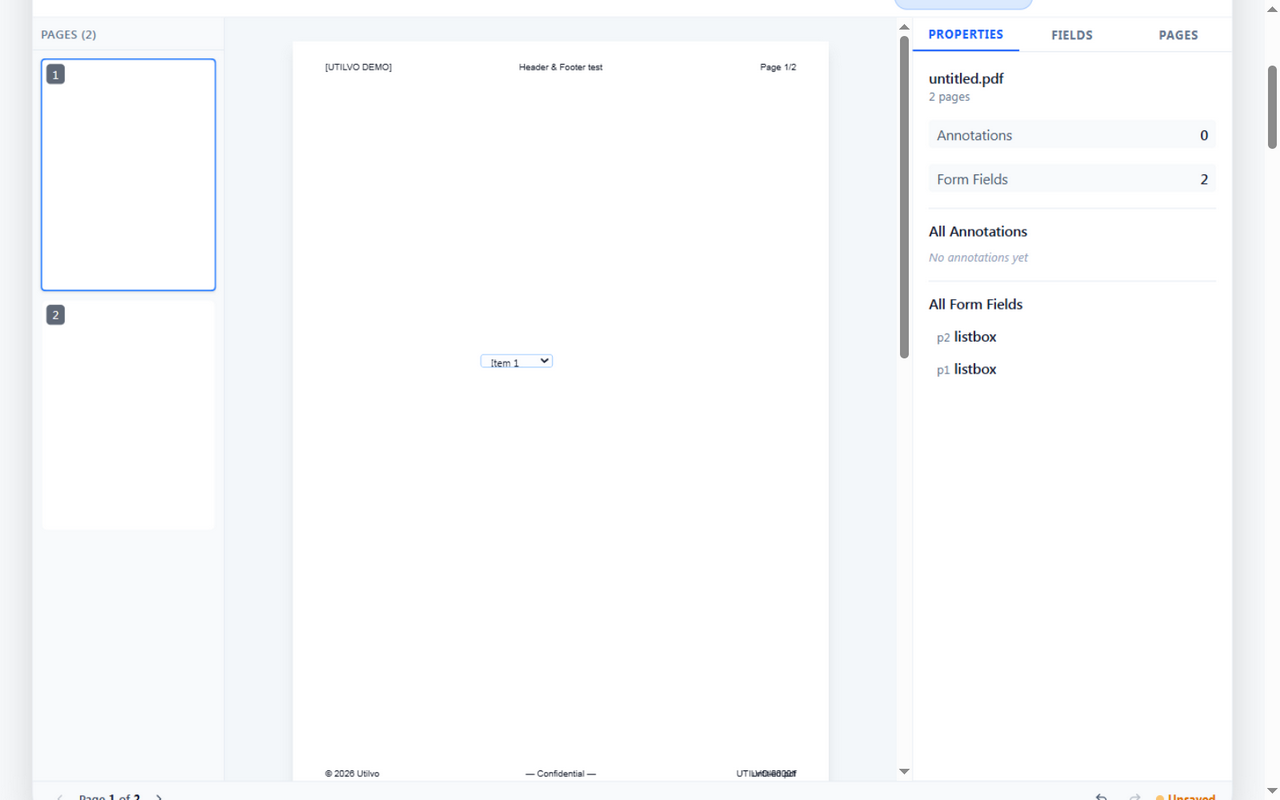
- 1
Drop the PDF onto the workspace
Either click the dropzone or drag a file from your file manager. The first page renders within a second. For password-protected PDFs, use Unlock PDF first.
- 2
Pick a tool group from the toolbar
Annotate, Forms, Pages, Security, or Text — each group reveals only its relevant tools. Hovering any tool reveals its name; clicking it arms the tool so subsequent page clicks perform that action.
- 3
Click on the page to place
Tools like FORM-LISTBOX, FORM-TEXT, signature, and image fields are click-to-place. Move the cursor over the page, click where you want the field's top-left corner, and a drag handle appears for repositioning. The same click-to-place workflow works on pages 2+ for blank inserted pages — see the tip below.
- 4
Configure overlays for every page
Open Pages → Header & Footer. You can enable the header (3 columns), the footer (3 columns), and Bates numbering independently. Tokens like
{page},{total},{date}, and{filename}are expanded automatically. - 5
Export the modified PDF
Click the Download button in the top-right. The output file is a standards-compliant PDF that opens in Acrobat, Preview, Foxit, and Chrome without warnings.
Click-to-Place Tools Work on Every Page — Including Blank Inserted Pages
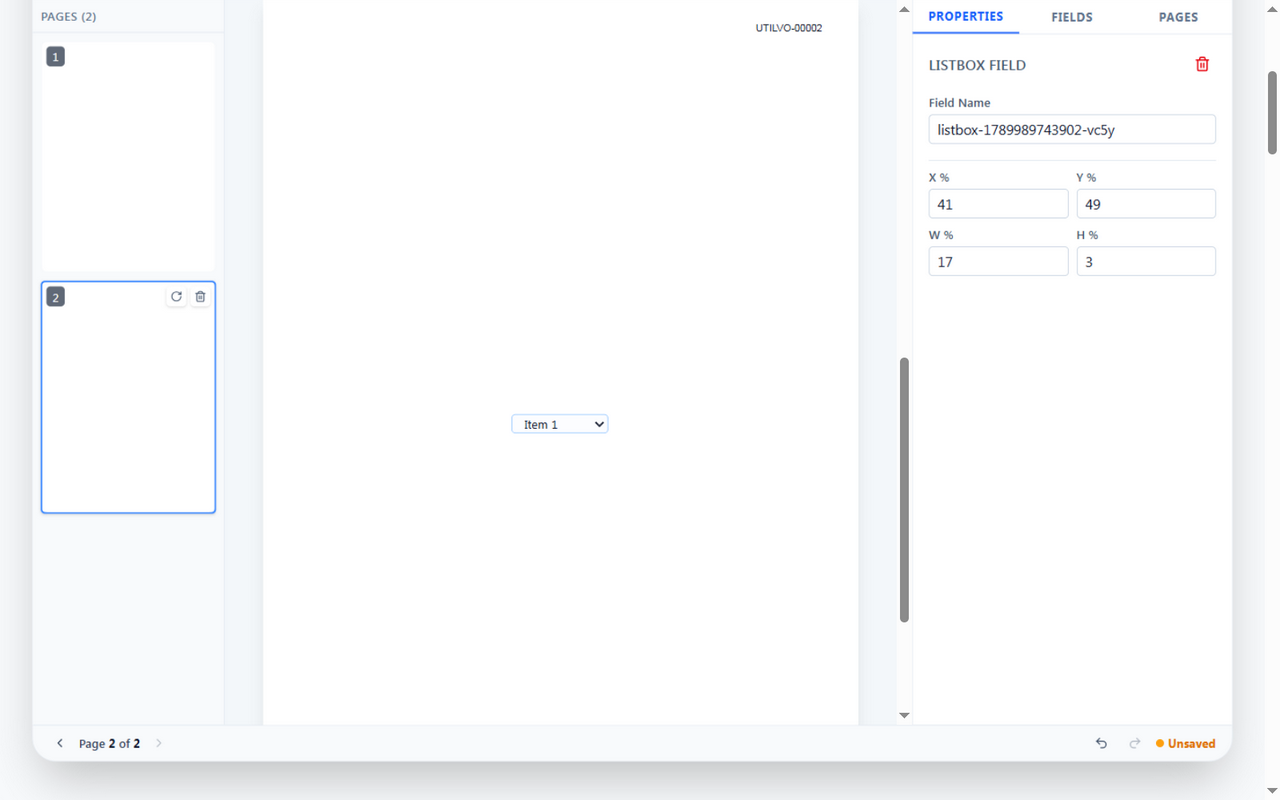
A common pain point in many PDF editors is that click-to-place tools (form fields, signatures, images) only respond on the first page, or stop responding after you insert a blank page. The Utilvo editor was designed so that every page is interactive, regardless of whether it is an original PDF page or one you added with "Insert Blank Page". The screenshot below confirms this with a FORM-LISTBOX placed on a freshly inserted page 2, alongside a Bates stamp that correctly incremented to UTILVO-00002.
Why Client-Side PDF Editing Matters for Privacy
Traditional online PDF editors operate on a cloud architecture: your document is uploaded to a remote server, processed in someone else's data center, and a download link is sent back. According to a 2023 ISO survey on PDF security, even "temporary" uploads persist on third-party hardware long enough to be subpoenaed, backed up, or breached.
The Utilvo Advanced PDF Editor inverts that model. The entire editing engine — parsing, rasterizing, AcroForm construction, signature assembly, Bates increment, PDF rebuild — executes inside your browser via WebAssembly. Your document bytes remain in your tab's memory and are erased when you close the tab. This architecture is the same one Mozilla uses for PDF reading in Firefox, and is increasingly the standard recommended by data-protection authorities (see the EDPB guidance on cloud-based document processing).
Feature Reference Table
Use this table as a quick lookup for which tool covers which task. Every entry links to the relevant deep-dive guide.
| Task | Tool | Guide |
|---|---|---|
| Highlight text in a contract | Annotate → Highlight | Annotate guide |
| Add a clickable signature field | Forms → FORM-SIGNATURE | Forms guide |
| Stamp every page with Bates numbers | Pages → Header & Footer (Bates tab) | Bates guide |
| Fix a typo in the PDF text layer | Text → Edit Text | Text guide |
| OCR a scanned image-only PDF | Text → OCR | OCR guide |
| Add a password to the output PDF | Security → Protect | Security guide |
| Insert a blank A4 page | Pages → Add Blank Page | Pages guide |
External References & Further Reading
For deeper technical context on the standards and concepts this editor implements, we recommend these authoritative sources:
- Wikipedia — Portable Document Format (PDF)— origin, ISO 32000 standardization, and security model.
- Wikipedia — AcroForms— the form-field specification used by every Forms tool.
- Wikipedia — Bates numbering— the legal-discovery convention behind sequential page stamps.
- Wikipedia — Optical character recognition (OCR)— how the OCR tool extracts text from scanned pages.
- Wikipedia — Digital signature— cryptographic signatures, certificate chains and tamper evidence.
- Wikipedia — WebAssembly— why local processing is now as fast as desktop apps.
Frequently Asked Questions
Is the Advanced PDF Editor really free?
Yes. Utilvo's Advanced PDF Editor runs entirely in your browser using WebAssembly — there is no paid tier, no watermark, no sign-up, and your files never leave your device.
Do my PDF files get uploaded to a server?
No. The entire editing pipeline executes locally using pdf-lib and pdfjs-dist inside your browser tab. Only anonymous usage analytics are sent.
Which PDF features are supported?
Annotations (highlight, sticky notes, free-draw, stamps, links, tables), AcroForm fields (text, checkbox, radio, dropdown, listbox, date, signature, image), page operations (insert blank, resize, rotate, reorder, extract), header/footer with Bates numbering, OCR for scanned text, edit text layer, protect/unlock with passwords, and digital signatures.
Can I edit a scanned PDF that has no text?
Yes. Use the OCR tool to run client-side text recognition, then the Edit Text tool to modify the newly extracted text layer.
What file size can the editor handle?
Because processing is local, the practical limit is governed by your browser's available memory. Documents up to ~500 MB have been tested without issues on a modern 16 GB laptop.
Are my edits preserved when I share the PDF?
Yes. Annotations, form fields, and signatures are written back into the PDF structure in accordance with the ISO 32000 PDF specification, so recipients can open the file in Acrobat, Foxit, Preview or any compliant viewer.
Open the Editor and Start Editing
The fastest way to learn any tool is to use it. Open the Advanced PDF Editor, drop a sample PDF, and follow along with any of the five deep-dive guides below.