How to Organize PDF Pages: Step-by-Step Guide with Screenshots
Whether a scanner fed your pages in reverse order, a legal exhibit needs to be moved before an affidavit, or sideways landscape diagrams need orientation correction, managing PDF page sequence is a universal requirement. This visual guide demonstrates how to reorder, rotate, delete, and insert blank sheets into any PDF document locally in your browser using Utilvo.
You can open the visual organizer tool directly or follow the illustrated steps below.
Why Client-Side PDF Organizing Improves Privacy
Legacy online PDF organizers upload your entire document to a cloud web server. The server renders thumbnails remotely, receives your drag-and-drop actions across network requests, re-encodes the document on cloud disk space, and then streams the result back. When handling financial audits, patient records, or proprietary proposals, uploading full documents over the public web introduces unnecessary exposure vectors.
Utilvo operates locally in your browser: using WebAssembly and HTML5 Canvas, high-resolution page thumbnails are rendered directly from your computer's RAM. Every page rotation, reordering swap, or deletion executes in client memory without uploading a single byte to an external server.
Selecting and Adding Your PDF Document
Open the Utilvo Organize PDF tool. The initial screen displays an intuitive upload dropzone that supports drag-and-drop and standard file selection dialogs.
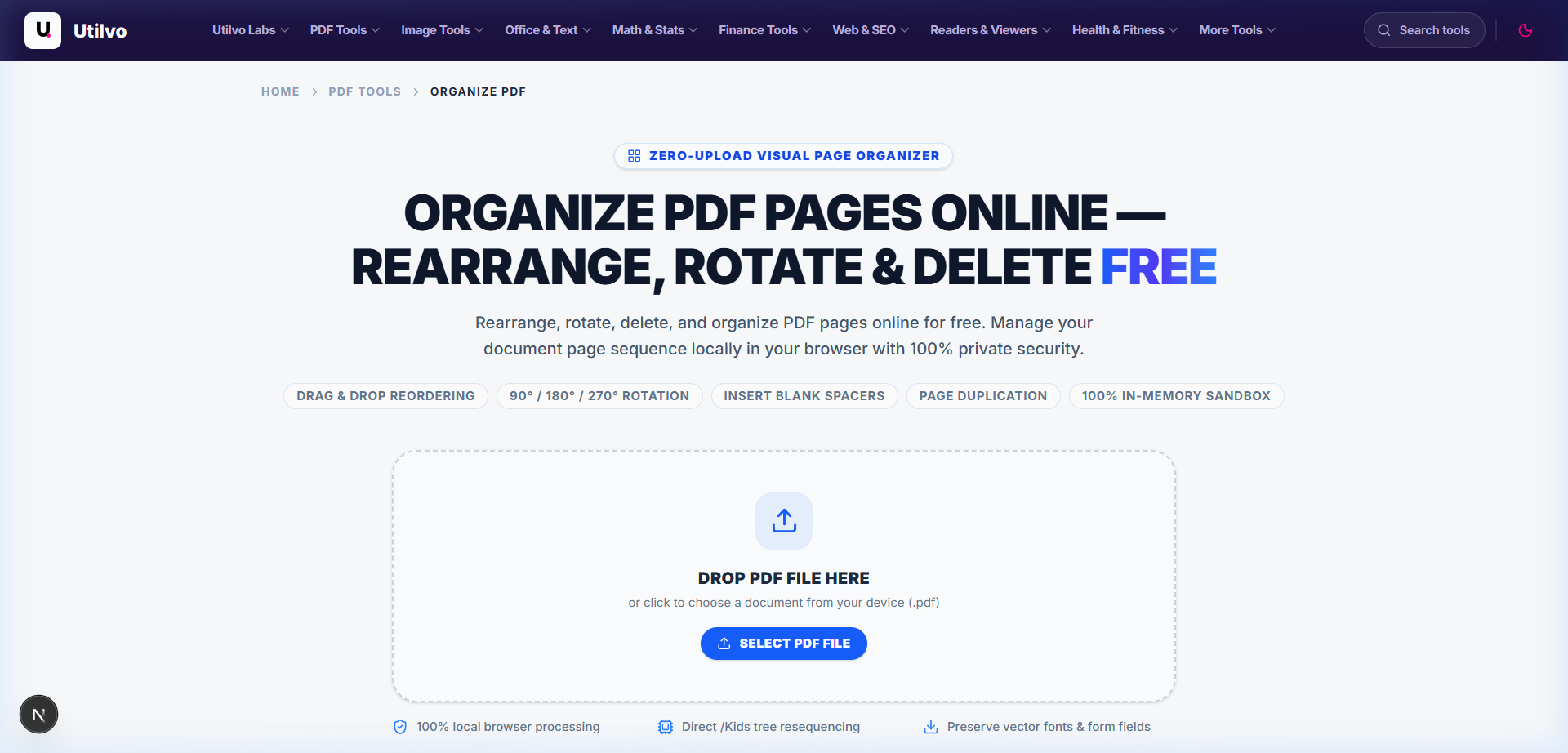
Drag your PDF file directly from desktop or file explorer over the dashed dropzone to start organizing immediately without extra clicks.
Rearranging, Rotating, and Inserting Pages in the Visual Grid
Once loaded, Utilvo displays an interactive visual grid with crisp thumbnail previews for every page in your document. Each card reflects its current sequence number and offers dedicated manipulation controls.
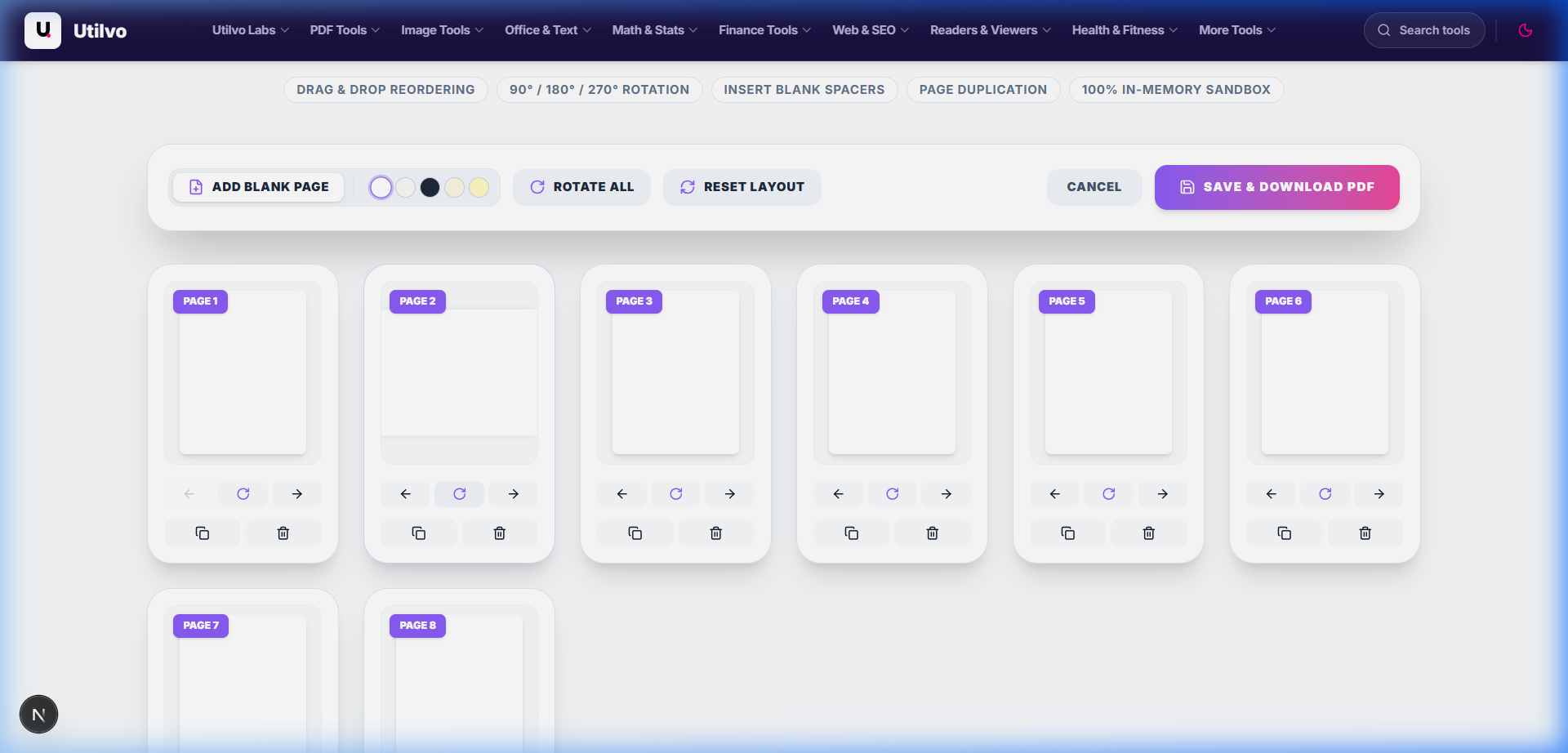
Drag-and-Drop Reordering
Click and drag any page card to drop it into a new position. Alternatively, use the left and right arrows on the card to move it step-by-step.
Rotating Single or All Pages
Click the rotate icon on any card to turn that page 90° clockwise, or use "Rotate All" in the top bar to adjust the entire document's orientation.
Inserting Blank Pages
Insert a clean separator or chapter divider sheet anywhere with a single click, with customizable paper colors including White, Ivory, Slate, and Cream.
Saving and Downloading Your Reorganized Document
Once you have perfected the page sequence, deleted unwanted sheets, and oriented every diagram correctly, click the prominent Save & Download PDF button in the top action toolbar.
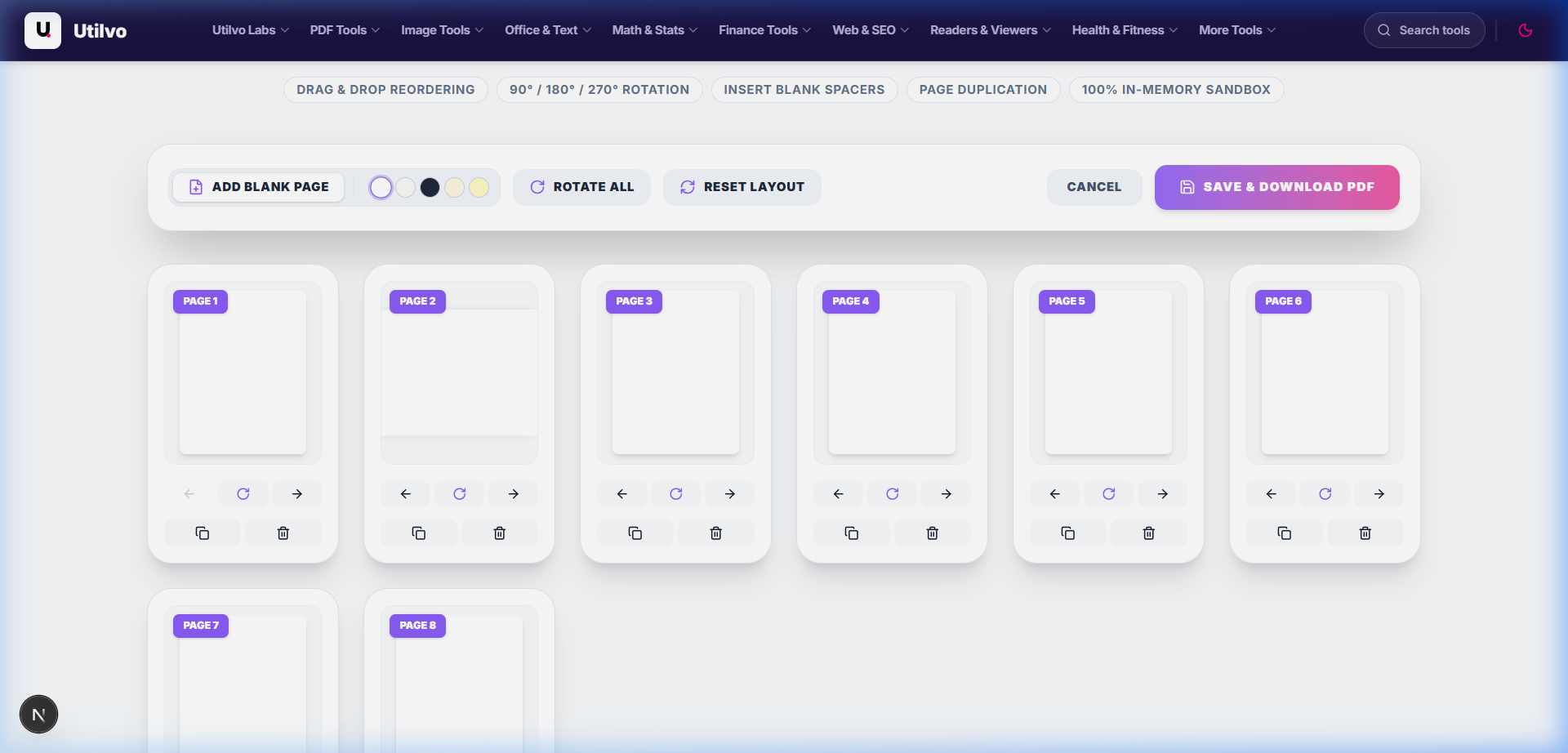
Because the reorganized PDF is generated locally in your browser, there is no need to upload the processed document to a remote server before downloading it. The browser immediately writes the compiled PDF Blob to your disk with all your page rearrangements, rotations, and custom insertions intact.
Technical Architecture Comparison: Local vs. Cloud Organizing
Examining how document trees are reorganized locally compared to cloud-based processing highlights key differences in security, latency, and system resource utilization.
| File handling | Utilvo | Server-based converters |
|---|---|---|
| File upload | Files remain in your browser | Files are uploaded to a remote server |
| Processing | Client-side (WebAssembly / browser memory) | Server-side queue |
| Download | Generated locally in memory | Processed file returned from server |
| File privacy | No PDF upload to Utilvo's servers | Files stored temporarily on remote disk |
| Document limits | Generous limits bound by available device memory | Frequently capped by 25MB or 50MB file size paywalls |
Common PDF Organizing Pitfalls and How to Avoid Them
1. Protected or Encrypted Documents
If your file has permission restrictions preventing page modification, the browser engine cannot rewrite its internal page tree. Unlock the file beforehand using Utilvo Unlock PDF to create an unrestricted version.
2. Mixed Portrait and Landscape Orientation
When compiling sheets from financial spreadsheets and standard narrative reports, rotating single landscape pages avoids awkward reading angles in PDF viewers without forcing the entire document into landscape.
3. Binding and Margin Adjustments
If your reorganized PDF will be printed and bound into a physical book or binder, ensure adequate inner margin gutter spacing using our companion Add Margins to PDF tool so no text is obscured in the binding spine.
Frequently Asked Questions
Does organizing PDF pages online expose my document data?
Not on Utilvo. Unlike cloud-based document platforms that upload your files to remote servers, Utilvo organizes and reassembles your PDF pages locally in your browser memory via WebAssembly. No PDF files are uploaded to Utilvo's servers.
How do I change the page order in my PDF document?
Simply drag and drop any page thumbnail to its desired position in the visual grid, or use the left and right directional arrows on individual page cards to adjust the document sequence.
Can I rotate pages that were scanned sideways or upside down?
Yes. You can click the rotate icon on individual page thumbnails to turn them 90 degrees clockwise, or use the "Rotate All" button in the top action bar to orient all pages at once.
Can I insert blank pages or custom separator sheets?
Yes. Click the "Add Blank Page" button in the action toolbar to insert an empty sheet anywhere in your document, with customizable page colors including White, Ivory, Slate, Cream, or Yellow.
Will rearranging pages break existing text formatting or fonts?
No. The client-side engine restructures the internal PDF page tree while preserving vector typography, embedded fonts, and page dimensions without altering the underlying content streams.
Related PDF Tools & Guides
Continue with companion utilities and tutorials to streamline your document workflow.