How to Merge PDF Files: Step-by-Step Guide with Screenshots
Whether you are consolidating scattered monthly invoices, preparing legal discovery bundles, or stitching presentation slides with meeting notes, combining PDF files should never put your confidential data at risk. This comprehensive tutorial walks you through merging PDF documents locally in your browser using Utilvo—with no PDF uploads to remote servers, visual page reordering, and instant output generation.
You can open the free browser tool directly or follow the step-by-step walkthrough below.
Why Client-Side PDF Merging Improves Privacy
Most popular online PDF mergers operate on a traditional cloud architecture: when you click upload, your financial statements, contracts, or medical records travel over the internet to a remote server. The server stitches the binary files, saves a temporary copy on its disks, and sends a download link back. Even when services advertise automatic file deletion after 60 minutes, your raw document content exists on third-party hardware during transit and processing.
Utilvo uses a client-side architecture: the entire merge engine runs inside your browser using modern WebAssembly and JavaScript binary manipulation. Your files remain in your device’s local memory (RAM). This client-side architecture reduces the privacy risks associated with uploading sensitive documents to a third-party processing server, while eliminating upload bandwidth delays.
Selecting and Adding Your PDF Documents
Navigate to the Utilvo Merge PDF tool. The initial screen presents a clean, distraction-free dropzone designed for both single-file selection and multi-document batch drops.
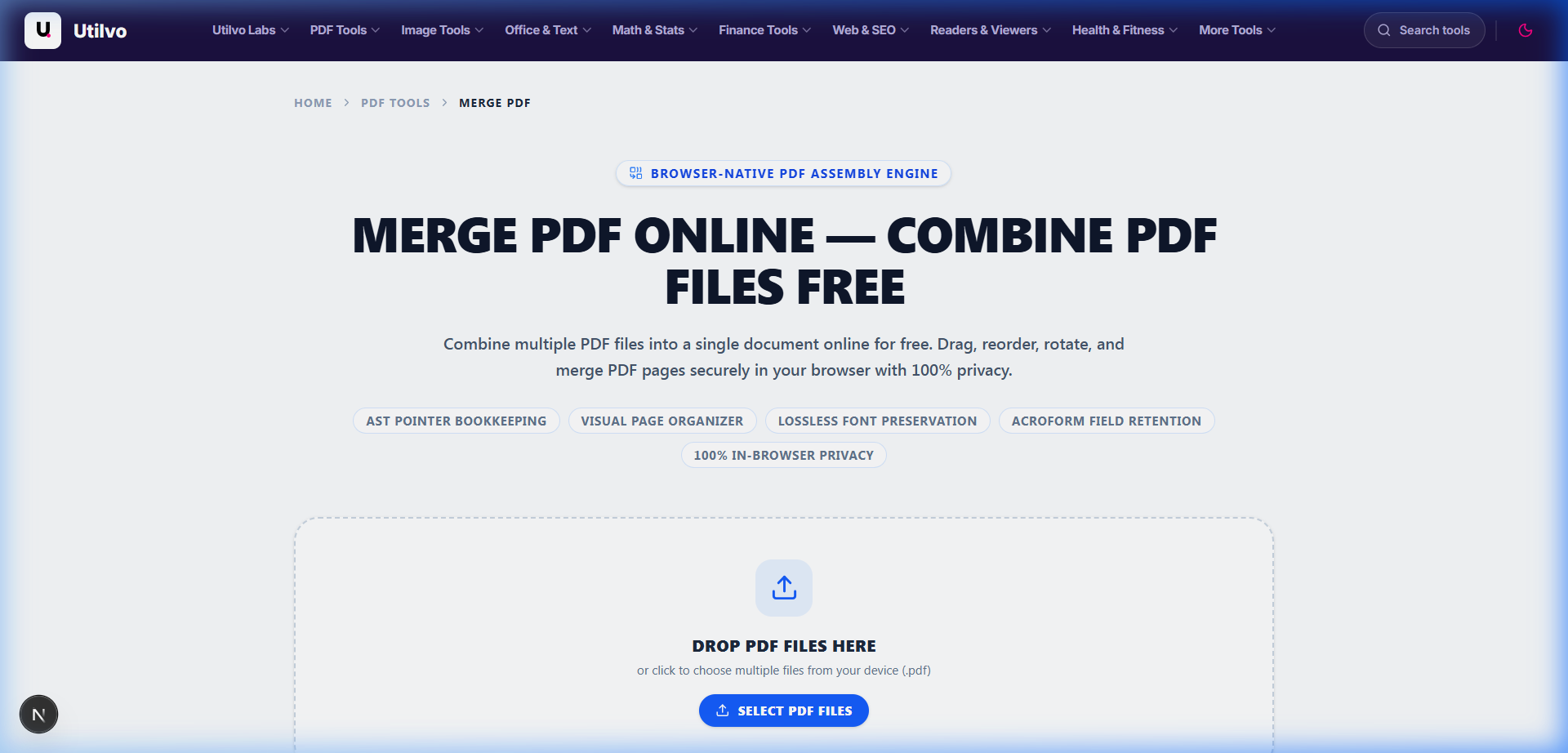
You do not need to upload files one by one. In your computer’s file explorer (Finder on macOS or File Explorer on Windows), hold Ctrl (or Cmd) and click all documents you wish to combine, then drag the whole selection directly into the dropzone.
Organizing Sequence, Rotating Pages, and Custom Page Ranges
Once your files are added, Utilvo parses each PDF’s internal tree structure and displays a comprehensive visual workspace. You can inspect exact page counts, file sizes, and first-page visual thumbnails.
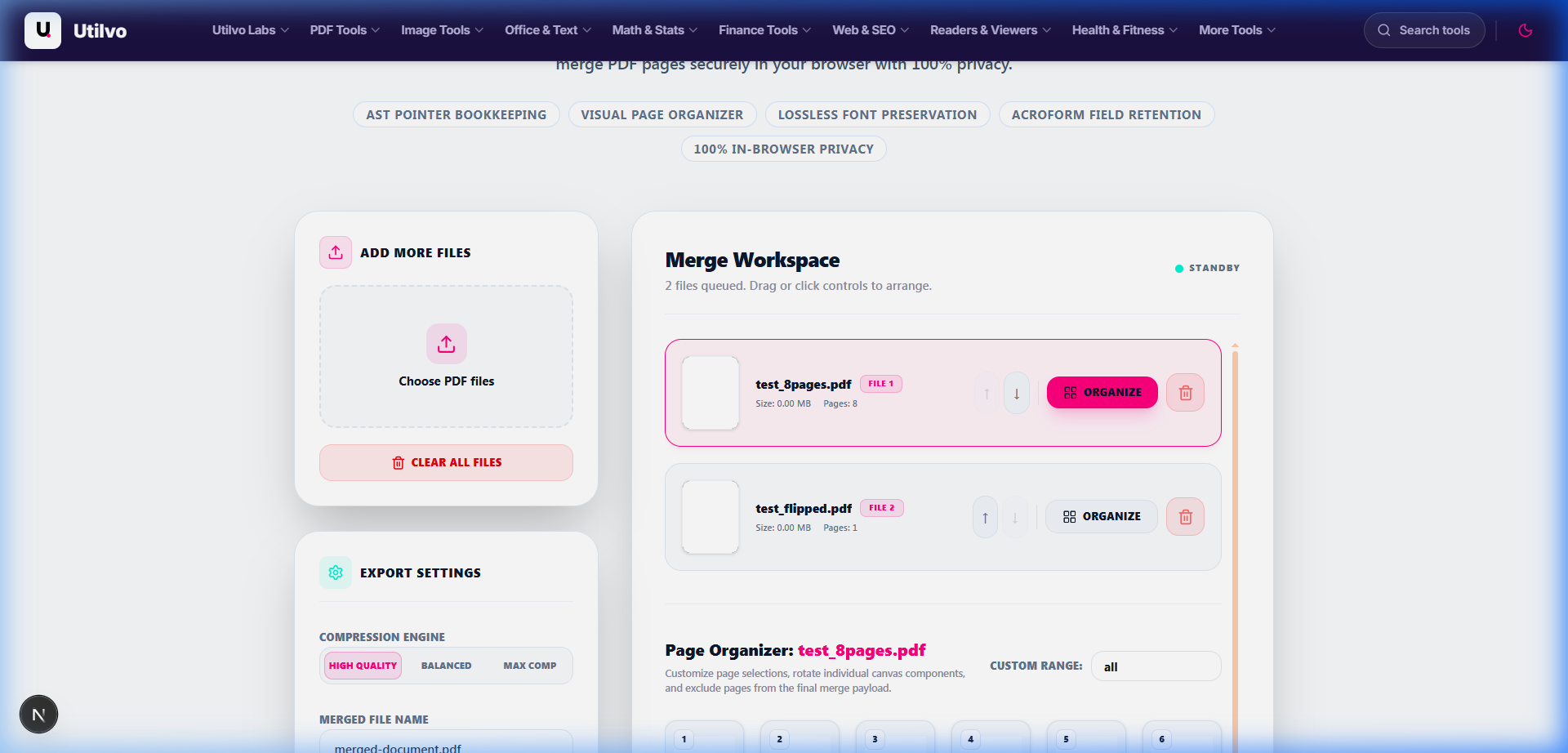
Change File Order
Click and drag any file card to reposition it. The document at the top will become the initial pages of your combined PDF, followed sequentially by those below.
Rotate Individual Pages
If a scanned invoice or horizontal spreadsheet is oriented sideways, click on the file to open the page viewer and rotate it 90° or 180° before merging.
Exclude Unneeded Sheets
Notice an extra blank page or disclaimer cover that doesn’t belong in the final dossier? Delete it directly within the page grid without needing a separate tool.
Merging and Downloading the Final Document
Review your output settings in the bottom toolbar. You can assign a custom output filename (e.g., Q3-Financial-Report-Complete.pdf) and select a compression profile if you plan to email the output. Then click Merge PDF Files.
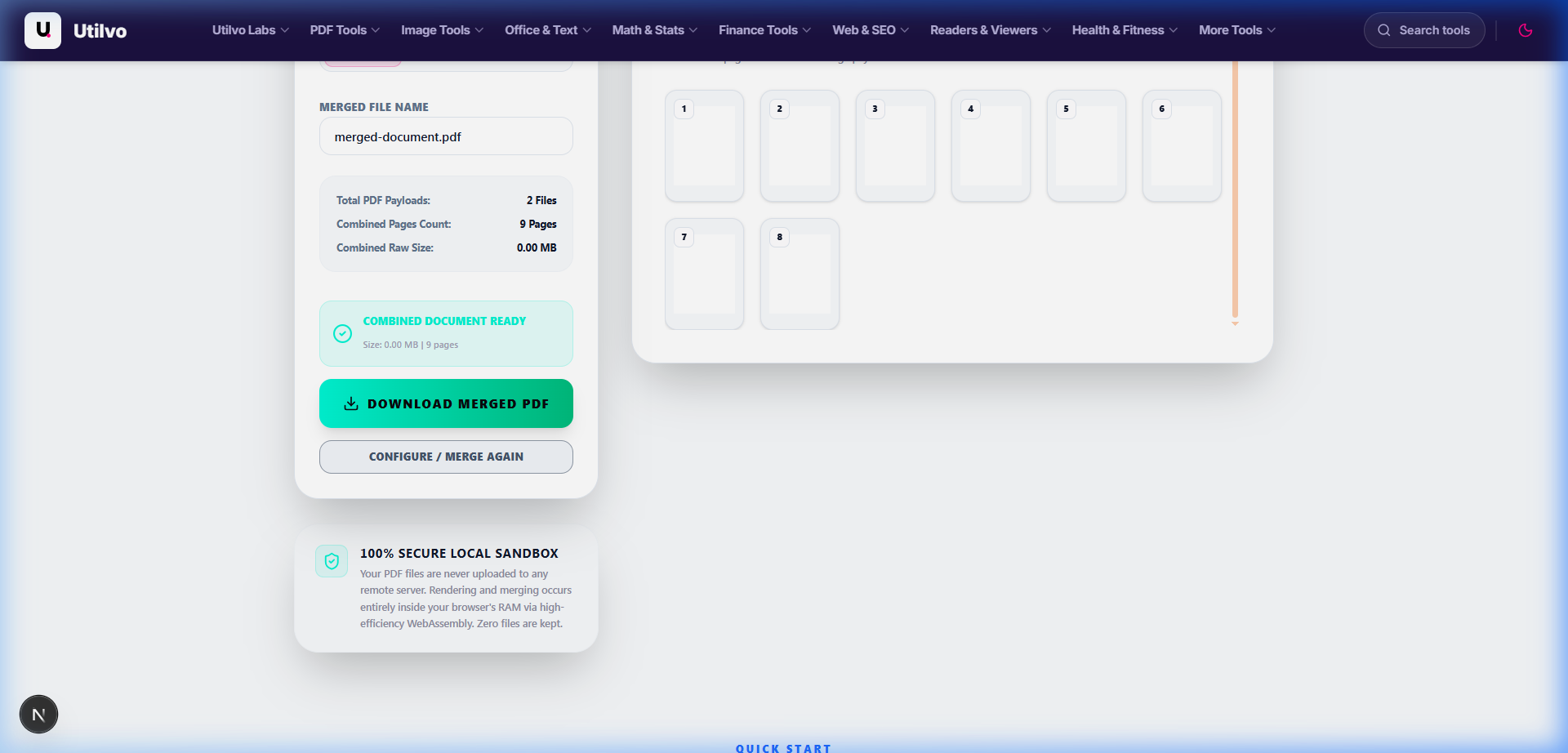
Because the merged PDF is generated locally in your browser, there is no need to upload the processed document to a remote server before downloading it. Clicking Download Merged PDF prompts your browser to save the binary Blob directly to your local Downloads folder.
Technical Architecture Comparison: Local vs. Cloud Merging
Understanding the architectural differences between browser-first processing and cloud conversion services helps technical users evaluate security, speed, and reliability.
| File handling | Utilvo | Server-based converters |
|---|---|---|
| File upload | Files remain in your browser | Files are uploaded to a remote server |
| Processing | Client-side (WebAssembly / browser memory) | Server-side queue |
| Download | Generated locally in memory | Processed file returned from server |
| File privacy | No PDF upload to Utilvo's servers | Files stored temporarily on remote disk |
| Document limits | Generous limits bound by available device memory | Frequently capped by 25MB or 50MB file size paywalls |
Common PDF Merging Pitfalls and How to Avoid Them
1. Encrypted or Password-Protected Documents
If one of your input PDFs requires a password to open, the browser engine cannot read its object stream without authorization. To resolve this, use Utilvo Unlock PDF to create an unencrypted working copy before merging.
2. Mixed Page Dimensions (Letter vs. A4)
Combining files sourced from American teams (US Letter: 8.5 x 11 in) and international teams (ISO A4: 210 x 297 mm) can cause uneven printer margins. Utilvo preserves each page’s native /MediaBox coordinates. If standardized printing is required, run the combined output through our A4 to Letter normalizer.
3. Interactive Form Field Collisions (AcroForms)
When two independent PDF forms use identical field names (such as Date_of_Birth or Signature_Line), older PDF mergers accidentally overwrite one field with data from the other. Utilvo isolates field dictionaries, or you can flatten form fields using Flatten Annotations to permanently lock in typed responses.
Frequently Asked Questions
Does merging PDF files online compromise my document confidentiality?
Not on Utilvo. Unlike standard web converters that upload your PDFs to remote cloud servers, Utilvo processes document trees locally inside your browser memory using WebAssembly. No PDF files are uploaded to Utilvo's servers.
Can I rearrange the order of pages or entire files before merging?
Yes. Once you select your PDF documents, you can drag and drop file cards to change their order, rotate individual pages that were scanned upside down, or delete unneeded pages before initiating the merge.
Is there a file size or page limit when combining PDFs?
Because processing happens directly on your machine's hardware rather than a server with hard upload limits, you can comfortably merge dozens of documents comprising hundreds of pages without subscription blocks.
What happens to interactive form fields and bookmarks in merged files?
Utilvo merges page trees while preserving vector typography, embedded fonts, and page annotations. If your files contain interactive AcroForm fields, they are retained or harmonized to avoid field name collisions.
Can I merge password-protected PDF files?
If a PDF has an open password, you must unlock it before combining. Utilvo provides a dedicated Unlock PDF tool to strip permissions locally so you can seamlessly merge it with your other documents.
Related tools
Merge PDF
Combine multiple PDF files into a single organized document with visual drag-and-drop.
Split PDF
Extract pages or split documents by custom ranges in browser memory.
Organize PDF
Visually reorder, rotate, delete, or insert blank sheets.
Compress PDF
Reduce PDF file size locally in your browser with zero server uploads.
Related guides
How to Split PDF Files and Extract Pages
Separate individual sheets or custom page spans into independent files client-side.
How to Organize PDF Pages
Visually reorder, rotate, delete, and structure complex multi-page PDF documents.
How to Compress a PDF
Reduce PDF file size for email and web uploads without compromising text sharpness or DPI.