How to Split PDF Files: Step-by-Step Guide with Screenshots
Extracting a single signed invoice from a bulky billing statement, dividing legal discovery dossiers by exhibit number, or saving individual chapters from an ebook should not require complex software or uploading confidential documents to unfamiliar cloud servers. This step-by-step tutorial guides you through separating PDF pages and extracting custom page ranges locally in your browser with Utilvo.
You can launch the free browser tool directly or follow the illustrated walkthrough below.
Why Client-Side PDF Splitting Improves Privacy
Standard cloud document tools require transmitting your complete PDF over the internet to a third-party server. Once received, the remote machine extracts your target pages and hosts them on an external storage cluster until you download them. Even when cloud services advertise automated deletion after one hour, transmitting sensitive tax records, personnel files, or trade contracts across external networks introduces unnecessary data exposure.
Utilvo uses a client-side architecture: the document extraction engine runs entirely in your local browser sandbox via WebAssembly and JavaScript binary manipulation. Your files remain in your device’s local memory (RAM). This client-side architecture reduces the privacy risks associated with uploading sensitive documents to a third-party processing server, while eliminating upload bandwidth delays.
Selecting and Adding Your PDF Document
Open the Utilvo Split PDF tool. The initial screen displays an intuitive upload dropzone that accepts PDF documents of any page count directly from your local drive.
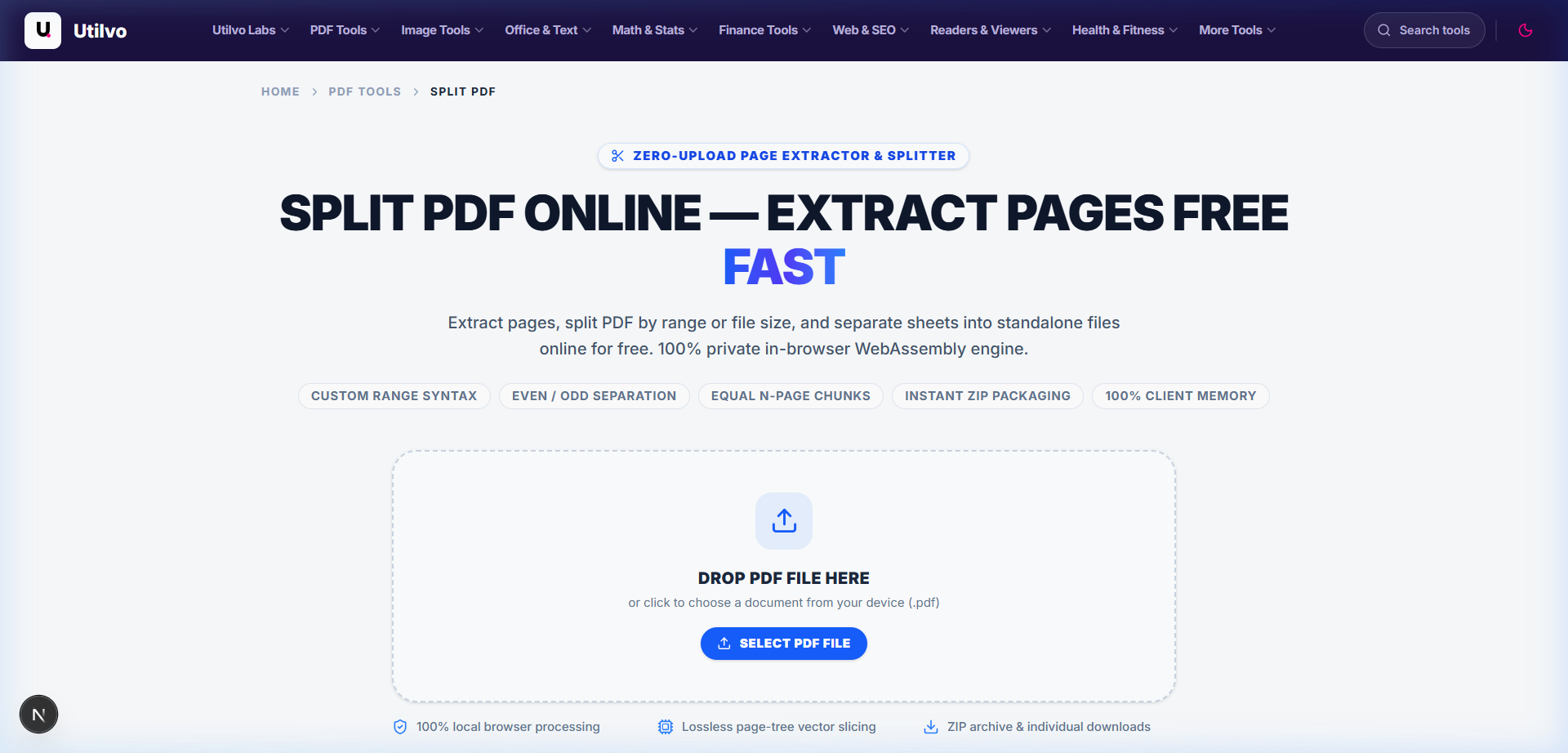
Because Utilvo parses document structures locally through WebAssembly, you can comfortably load manuals or contracts containing hundreds of pages without experiencing upload timeouts or file size rejection errors.
Choosing Your Splitting Mode and Selecting Pages
Once loaded, Utilvo displays high-resolution visual previews for every page in your document. You can choose from multiple flexible splitting workflows tailored to your specific task.
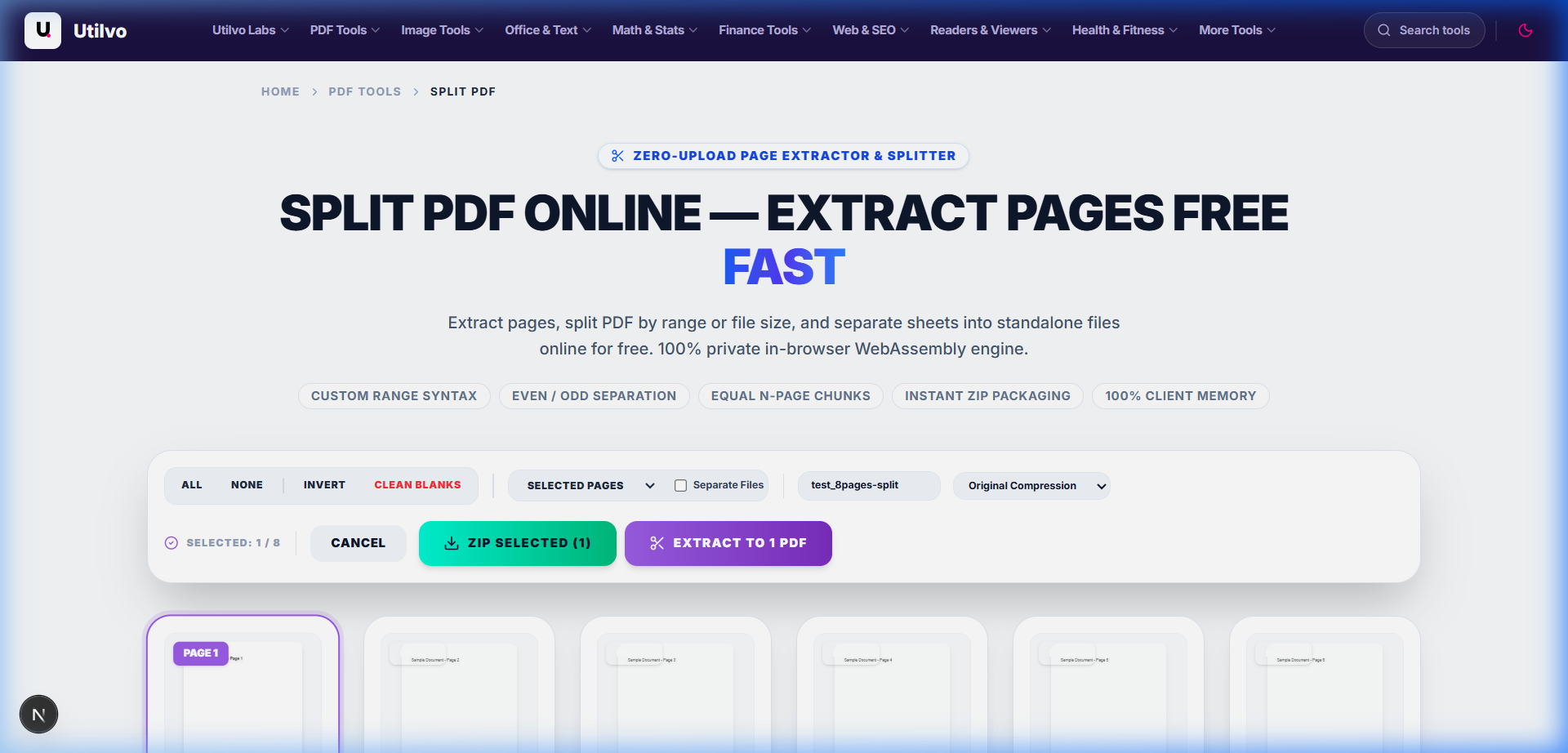
Extract Selected Pages
Click directly on thumbnail cards to highlight the exact sheets you need. You can extract them as a single consolidated PDF or save each highlighted page separately.
Split by Custom Page Ranges
Enter comma-separated ranges such as 1-3, 5-8 to split distinct chapters or contract exhibits into separate PDF documents simultaneously.
Split Every Page into Files
Perfect for batch-scanned mail or statement archives: convert each sheet into an individual one-page PDF, bundled into a tidy ZIP file.
Generating and Downloading the Extracted PDF Files
Once you have selected your pages or entered your range specifications, assign an optional prefix for your output files (e.g., Agreement-Section) and click the primary action button.
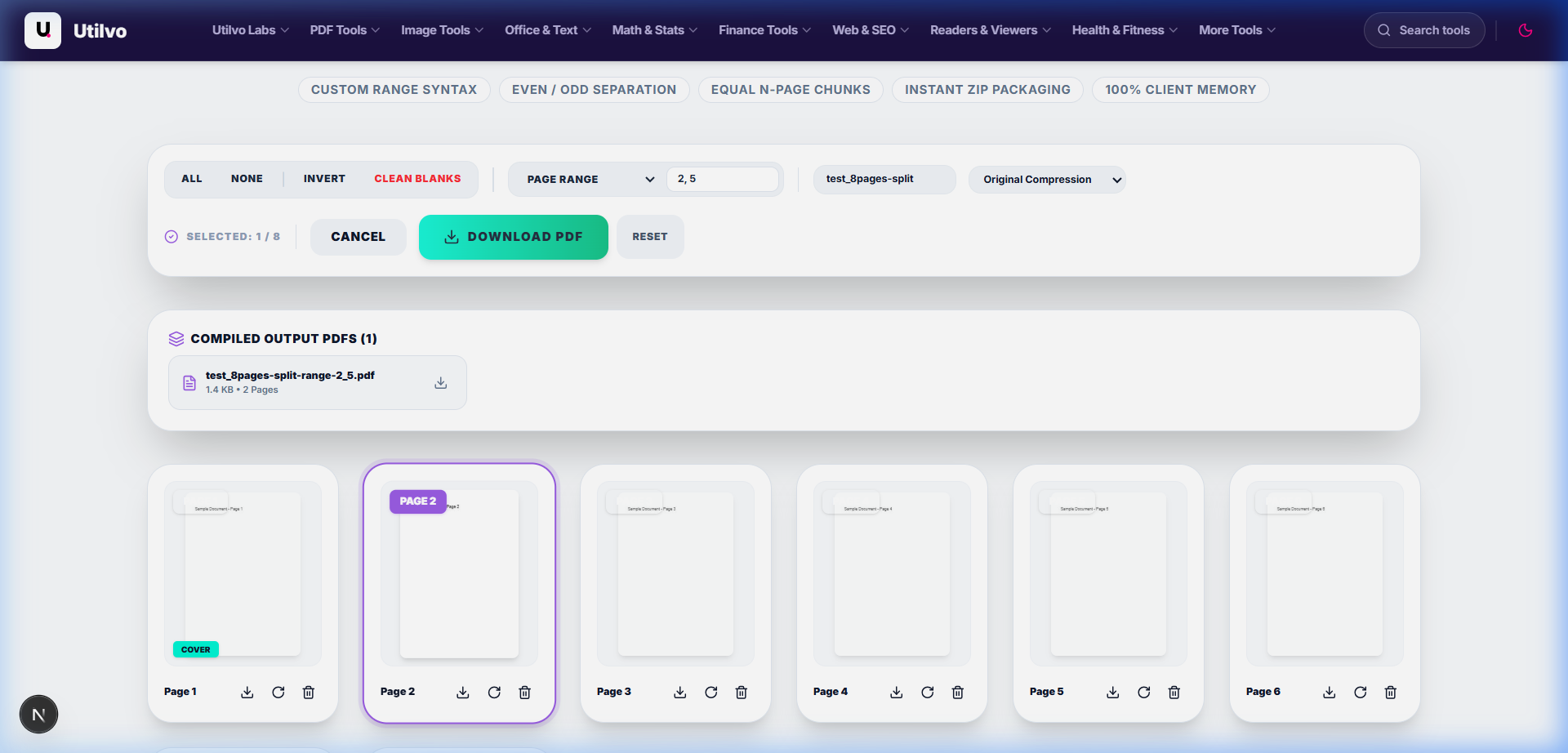
Because the split PDF is generated locally in your browser, there is no need to upload the processed document to a remote server before downloading it. Clicking Download PDF (or Download All (ZIP)) immediately saves the output directly to your local drive.
Technical Architecture Comparison: Local vs. Cloud Splitting
Comparing client-side memory execution with traditional cloud conversion architectures helps evaluate privacy, turnaround speed, and reliability for business workflows.
| File handling | Utilvo | Server-based converters |
|---|---|---|
| File upload | Files remain in your browser | Files are uploaded to a remote server |
| Processing | Client-side (WebAssembly / browser memory) | Server-side queue |
| Download | Generated locally in memory | Processed file returned from server |
| File privacy | No PDF upload to Utilvo's servers | Files stored temporarily on remote disk |
| Document limits | Generous limits bound by available device memory | Frequently capped by 25MB or 50MB file size paywalls |
Common PDF Splitting Pitfalls and How to Avoid Them
1. Password-Protected or Permission-Restricted Files
If your source document contains an open or owner password, the browser cannot dissect its page tree without permission. Use Utilvo Unlock PDF to generate an unrestricted version before configuring your split ranges.
2. Broken Navigation Outlines and Bookmarks
When extracting pages 15 through 25 from a 100-page report, document bookmarks pointing to chapters on page 50 can produce dead links in PDF readers. Utilvo automatically trims orphan bookmarks so your extracted output opens cleanly without navigation errors.
3. Batch Scanning Separations
If you are scanning stacks of receipts or invoices with physical blank pages between each document, manually typing ranges can be tedious. Instead, use Split PDF by Blank Page to automatically detect divider sheets and split your file in a single automated step.
Frequently Asked Questions
Does splitting a PDF online expose my confidential information?
Not on Utilvo. Unlike traditional web services that upload documents to remote servers, Utilvo processes your PDF locally in browser memory via WebAssembly. No PDF files are uploaded to Utilvo's servers.
Can I extract specific non-consecutive pages into a single PDF?
Yes. You can click to select individual pages in the visual grid, or enter custom comma-separated ranges (such as 1, 3, 5-7) to extract exactly the pages you need.
Can I split every single page into an independent PDF file?
Yes. The "Split Every Page" mode automatically generates individual single-page documents from your multi-page PDF and bundles them into a convenient ZIP archive for instant download.
Will splitting a document reduce the quality of embedded text or images?
No. The client-side engine preserves native vector graphics, embedded fonts, and raster images without re-compressing or degrading resolution.
What happens to bookmarks and outlines when a PDF is split?
Extracted pages retain their visual integrity and layout. Outlines and bookmarks pointing to non-extracted pages are safely pruned to prevent broken navigation links in your new document.
Related PDF Tools & Guides
Continue with companion utilities and tutorials to streamline your document workflow.