How to Compress a PDF: Step-by-Step Guide with Screenshots
Attempting to send an oversized 50MB PDF invoice, legal filing, or presentation pitch deck often triggers frustrating email attachment limits and portal rejection warnings. This step-by-step walkthrough explains how to shrink PDF file sizes while maintaining sharp text and high image clarity locally in your browser using Utilvo.
Launch the free client-side tool directly or follow the illustrated steps below.
Why Client-Side PDF Compression Improves Privacy
Most online PDF compression services upload your documents to remote cloud queues. The remote server parses the file, extracts embedded raster images, recompiles streams on third-party disk arrays, and then streams the compressed output back. For sensitive business agreements, medical charts, and financial filings, transmitting unencrypted documents over public network connections presents unnecessary privacy exposure.
Utilvo executes entirely in your browser: using client-side WebAssembly, PDF stream optimization and image downsampling occur strictly in your device's RAM. Your documents never travel across the internet, ensuring confidentiality while eliminating cloud upload waiting times.
Selecting and Adding Your PDF Documents
Navigate to the Utilvo Compress PDF tool. The initial screen displays an upload dropzone that supports both individual documents and multi-file batch uploads.
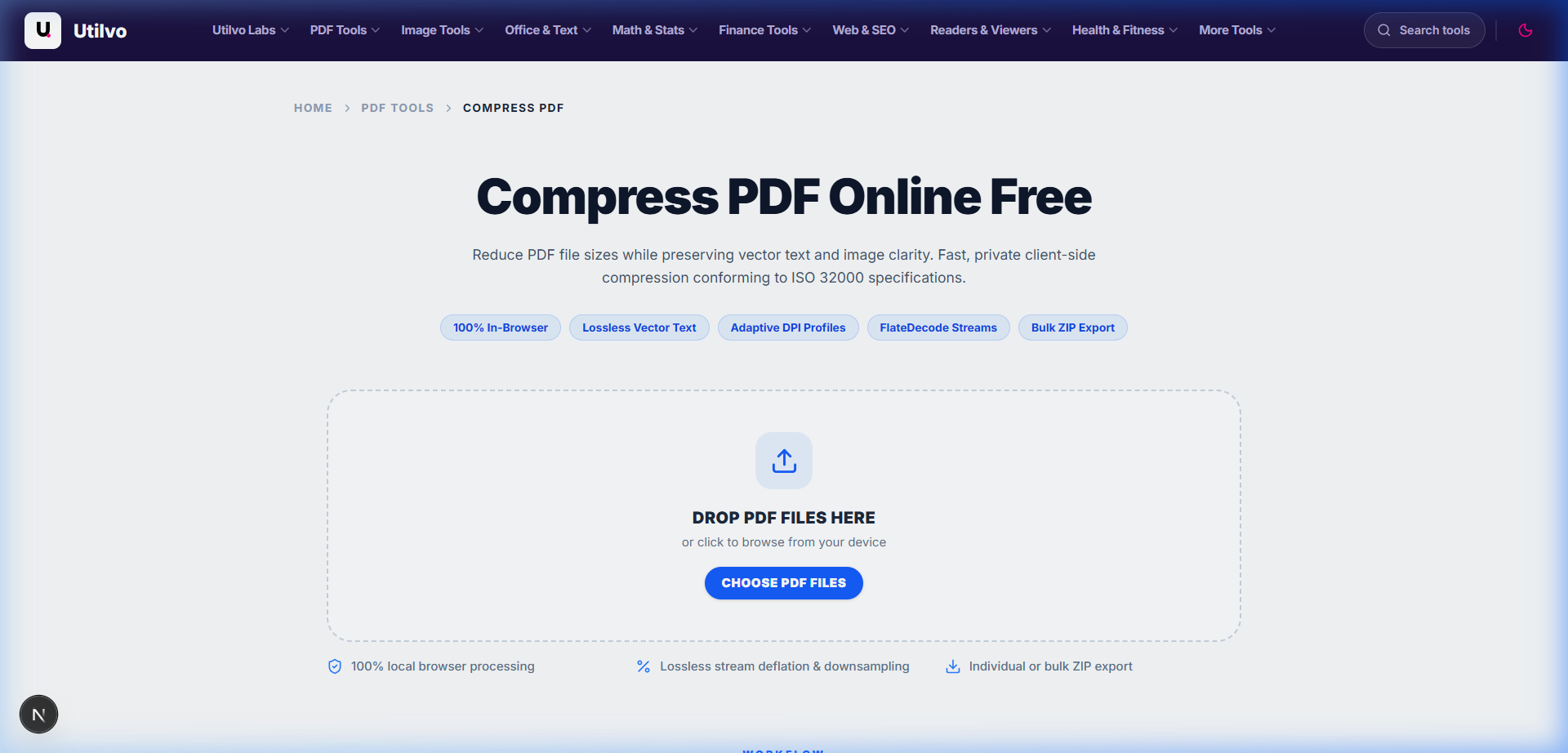
You can drop several documents at once. The engine will process each file in parallel inside your browser and compile all optimized documents into a single downloadable ZIP archive.
Inspecting Document Analysis and Choosing a Compression Profile
Once added, Utilvo inspects the internal object structure of your document, extracting page count, original file size, and embedded image frequencies. You can select from three fine-tuned compression profiles.
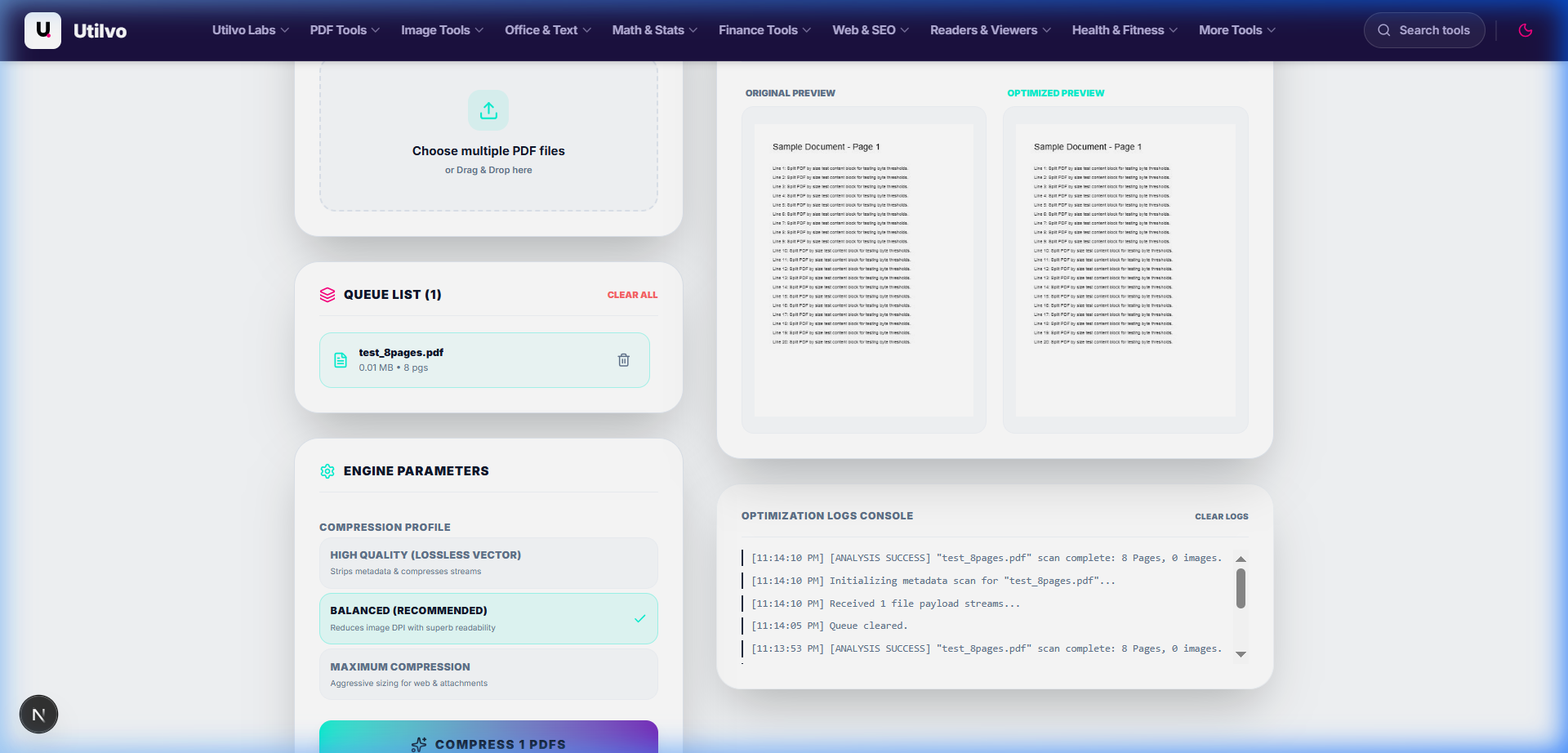
High Quality (Lossless)
Strips redundant XML metadata, duplicate fonts, and unused objects without altering raster images. Retains 100% original visual fidelity for professional printing.
Balanced (Recommended)
Optimizes heavy photographic content down to 150 DPI while keeping text razor-sharp. Best for everyday sharing via email, Slack, or cloud drives.
Maximum Compression
Aggressively resamples raster graphics to 72 DPI for web publishing and strict government upload portals with sub-2MB limitations.
Reviewing Size Savings and Downloading the Optimized PDF
Click Compress PDFs. The engine processes your document in real-time, streaming technical execution steps into the live log console.
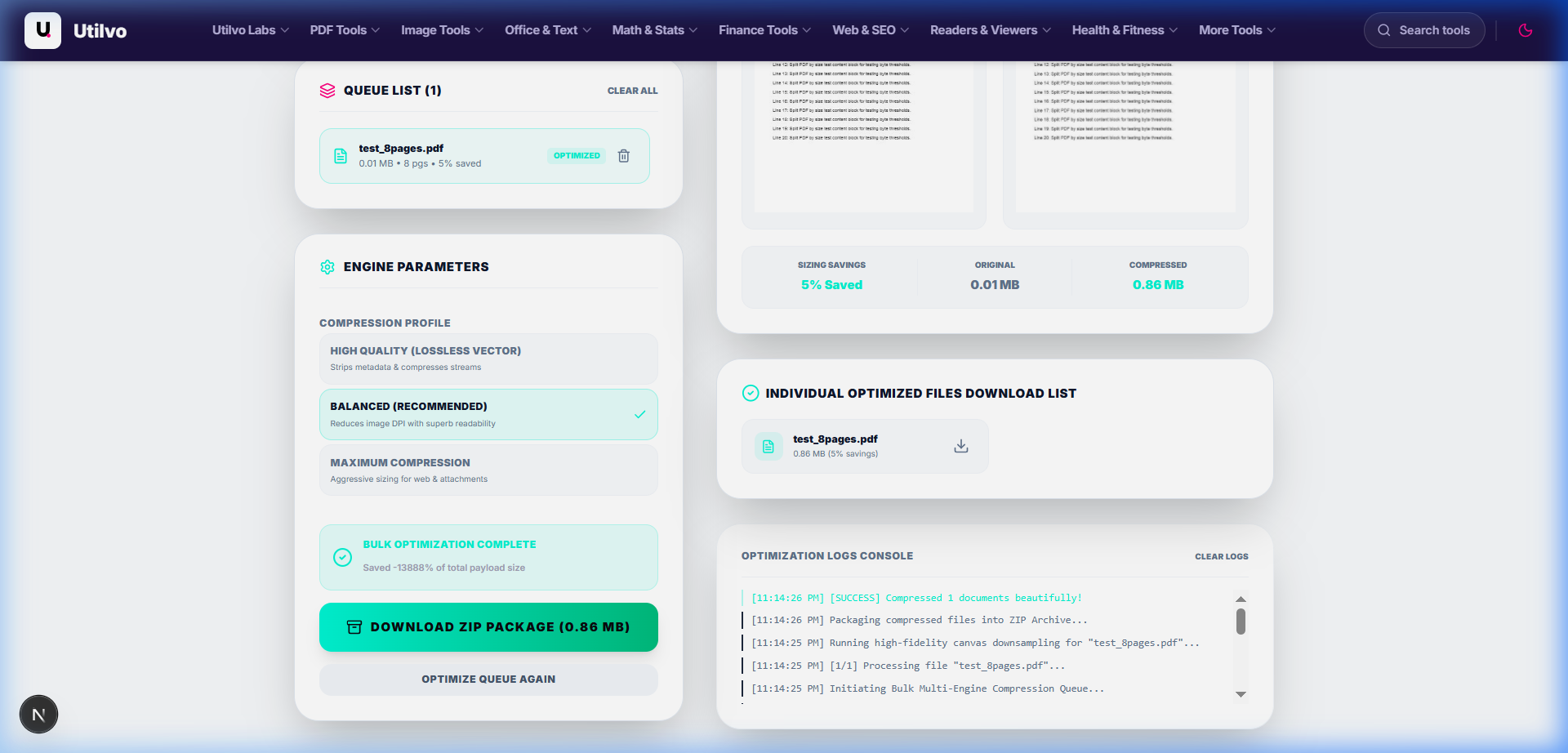
Because the compressed PDF is generated locally in your browser, there is no need to upload the processed document to a remote server before downloading it. Clicking Download Compressed PDF saves the optimized file directly to your disk with zero network delay.
Technical Architecture Comparison: Local vs. Cloud Compression
Evaluating client-side WebAssembly compression against cloud-based alternatives highlights critical differences in data privacy, throughput, and system quotas.
| File handling | Utilvo | Server-based converters |
|---|---|---|
| File upload | Files remain in your browser | Files are uploaded to a remote server |
| Processing | Client-side (WebAssembly / browser memory) | Server-side queue |
| Download | Generated locally in memory | Processed file returned from server |
| File privacy | No PDF upload to Utilvo's servers | Files stored temporarily on remote disk |
| Document limits | Generous limits bound by available device memory | Frequently capped by 25MB or 50MB file size paywalls |
Common PDF Compression Pitfalls and How to Avoid Them
1. Compressing Scans with Pre-Compressed JPEGs
If a scanned document already uses highly compressed 96 DPI JPEG streams, applying further compression yields minimal byte reduction. For these files, removing unwanted sheets via Delete PDF Pages is often the most effective size reduction strategy.
2. Print Shop Color Profile Stripping
Aggressive compressors sometimes convert four-color CMYK printing profiles to RGB, resulting in dull offset print colors. Utilvo includes a dedicated "Preserve Print Colors" toggle to retain exact commercial printing color profiles.
3. Encrypted or Password-Protected Documents
Encrypted PDFs cannot have their binary streams parsed without proper credentials. Use Utilvo Unlock PDF beforehand to create an unrestricted version before compression.
Frequently Asked Questions
Does compressing a PDF online expose my confidential information?
Not on Utilvo. Unlike traditional online converters that upload your files to remote cloud queues, Utilvo processes stream compression and image re-encoding locally inside your browser memory via WebAssembly. No PDF files are uploaded to Utilvo's servers.
What is the difference between Balanced and Maximum compression?
Balanced compression reduces heavy raster image resolutions to 150 DPI while preserving crisp vector text, ideal for everyday sharing. Maximum compression resamples images to 72 DPI and aggressively strips non-essential metadata for strict email size limits.
Will compressing a document blur or degrade vector typography?
No. Vector fonts, geometric curves, and typography remain mathematically sharp at any zoom level because our engine optimizes raster images and stream encodings without rasterizing vector text.
Can I compress multiple PDF documents at once?
Yes. You can drop multiple PDF files into the workspace simultaneously. The tool will analyze each file individually, display before-and-after sizes, and provide a single-click ZIP archive for downloading all compressed documents.
Why did my already-optimized PDF barely shrink in size?
If a PDF consists entirely of vector text, outlines, and already-compressed JPEG streams with minimal metadata, there is very little redundant binary data to strip. Our analysis badge will accurately indicate low compression potential beforehand.
Related tools
Related guides
How to Merge PDF Files: Step-by-Step Guide
Combine multiple contracts, invoices, and reports with visual drag-and-drop reordering.
How to Split PDF Files and Extract Pages
Separate individual sheets or custom page spans into independent files client-side.
How to Protect & Sign PDF Files
Apply AES-256 encryption and embed PKCS#7 cryptographic signatures in local memory.