How to Convert Word Documents to PDF Without Losing Formatting: Step-by-Step Guide with Screenshots
Converting a Microsoft Word document (.docx) into a PDF is fundamentally a process of freezing layout state. Word documents use an open-ended XML package (OOXML / ISO/IEC 29500) where pagination, line wrapping, and margins depend dynamically on the local operating system, printer drivers, and installed fonts. By compiling that fluid flow into an immutable ISO 32000-2 PDF, you lock in font subsets and exact millimeter dimensions across all platforms. This engineering tutorial examines how to execute high-fidelity Word-to-PDF conversions without formatting drift, unexpected blank pages, or font substitutions.
Documents are parsed and compiled locally in your browser memory. Proprietary business proposals and confidential legal briefs are never stored on remote servers.
Why Client-Side Word to PDF Conversion Improves Privacy
Sending a Word document across public networks to remote web converters exposes sensitive proprietary data. A typical corporate DOCX file contains embedded author histories, tracked revision metadata, corporate email headers, and company balance sheets. Online services that process files on remote cloud workers risk data leakage through temporary disk caching and automated analytics scrapers.
Utilvo restructures the conversion architecture by compiling OOXML document structures into PDF page streams directly inside your local browser memory sandbox. Because the processed document is generated locally in your browser, there is no need to upload the file to a remote server before downloading it, eliminating security vulnerabilities and WAN upload wait times.
Step 1: Selecting and Parsing Your Word Document
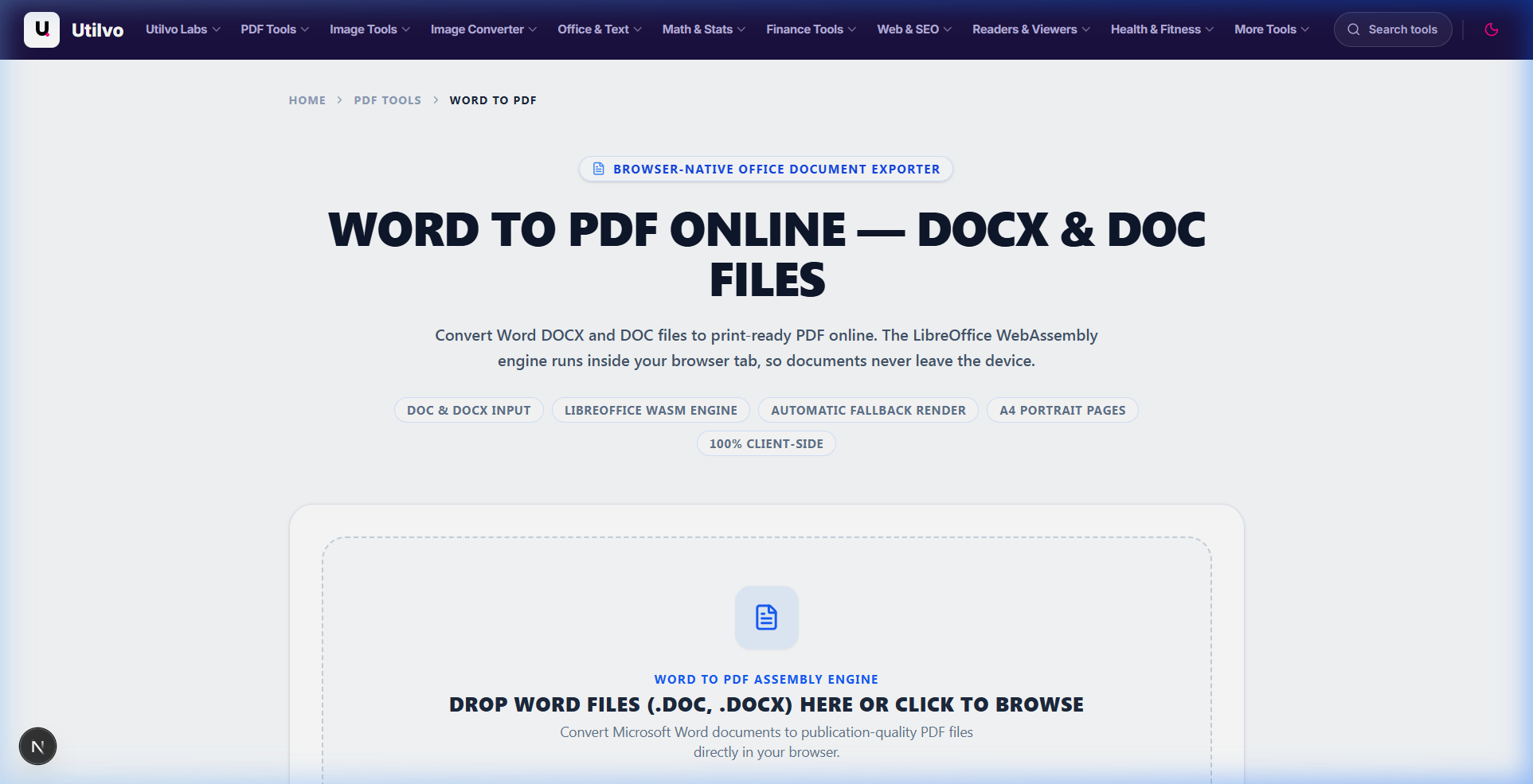
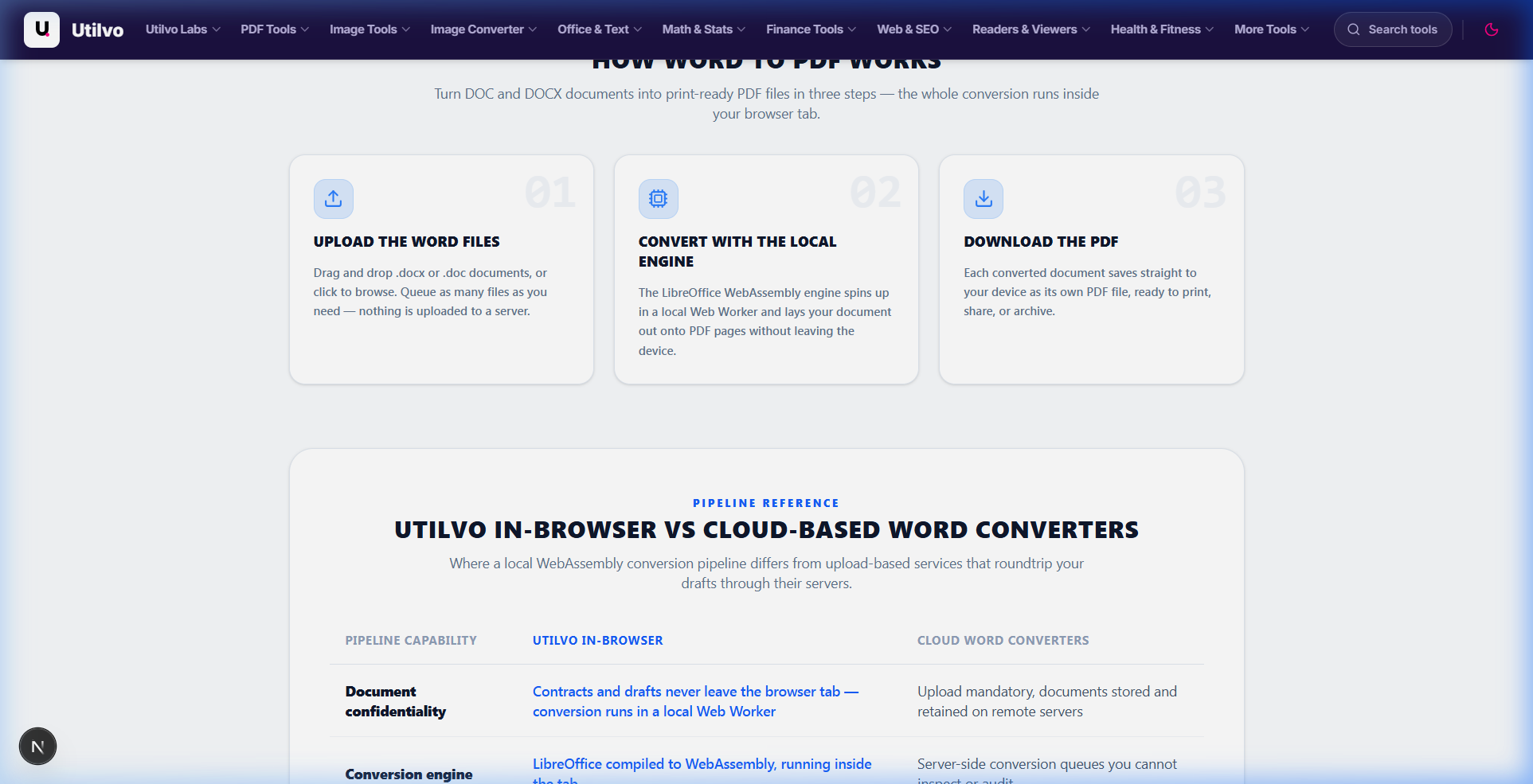
Open the Word to PDF tool. Drag your source .docx, .doc, or .odt file into the dropzone. The engine instantly unzips the document package and parses the main body XML stream (word/document.xml).
The Technical Reality: Live OOXML Flow vs Immutable PDF Pages
A Word file does not store pages; it stores an ordered stream of paragraphs and tables. The page breaks you see on screen are calculated dynamically on the fly based on your display resolution, margins, and active font metrics. During conversion, the engine resolves these calculations and bakes them into static physical PDF coordinates (ISO 32000-2) so that every recipient sees identical pagination regardless of their software.
Step 2: Resolving Font Subsets, Page Breaks, and Exporting PDF
Once layout interpretation completes, click Convert. The engine embeds necessary TrueType/OpenType font glyphs, compiles vector paths, and generates a standardized, printable PDF file ready for instant zero-latency download.
Font Subsetting
Embeds only the characters used in your document, guaranteeing identical typographic rendering without inflating PDF file size.
Table Integrity
Cell padding, background shading, and column widths are accurately mapped to vector stroke commands without misaligned borders.
Archival Stability
Generates self-contained document streams suitable for long-term storage, meeting compliance and legal filing standards.
Technical Architecture Comparison: Local vs. Cloud Word Conversion
Comparing client-side in-browser PDF compilation against conventional cloud-hosted document converters:
| File handling | Utilvo | Server-based converters |
|---|---|---|
| File upload | Files remain in your browser | Files are uploaded to a remote server |
| Processing | Client-side (WebAssembly / browser memory) | Server-side queue |
| Download | Generated locally in memory | Processed file returned from server |
| File privacy | No document upload to Utilvo servers | Files stored temporarily on remote disk |
| Document limits | Generous limits bound by available device memory | Frequently capped by 25MB or 50MB file size paywalls |
Common Word to PDF Pitfalls and How to Avoid Them
Watch out for these three frequent formatting issues during document conversion:
1. The Mysterious Trailing Blank Page
Word frequently hides empty carriage returns at the end of a document. PDF engines strictly render every paragraph break, often forcing a trailing empty paragraph onto an extra blank page. Turn on Show/Hide Formatting Marks (Ctrl+Shift+8) in Word and delete trailing paragraph markers before converting.
2. Uninstalled Custom Fonts and Line-Wrap Drift
If your DOCX uses a specialized commercial font that isn't standard on the converting system, the layout falls back to generic fonts with differing character widths. This subtle difference can push words onto new lines and expand a 1-page resume into 2 pages. Always embed fonts in the Word file (File > Options > Save > Embed fonts in the file).
3. Floating SmartArt and Dynamic Diagram Rendering
SmartArt graphics rely on Microsoft's proprietary runtime to calculate shape geometry. During conversion to static PDF vector instructions, complex SmartArt shapes may lose gradient fills or text padding. Right-click the SmartArt diagram in Word, save it as an image, and insert it as an inline picture to preserve 100% visual fidelity.
Frequently Asked Questions
Clear, technically grounded answers to common Word to PDF conversion questions.
Why does my document have an unexpected extra blank page at the end of the PDF?
This is almost always caused by a trailing empty paragraph mark or an orphaned section break at the very end of the source DOCX file. Microsoft Word frequently conceals trailing empty paragraph returns, but PDF rendering engines strictly paginate all paragraph markers. In Word, press Ctrl+Shift+8 to show formatting marks, delete the trailing paragraph returns or section breaks, and re-export to eliminate the blank page.
Why do Calibri and Cambria fonts render slightly differently on Linux-based conversion servers?
Calibri and Cambria are proprietary Microsoft typefaces not freely redistributable on open-source Linux servers. Open conversion engines substitute metric-compatible typefaces like Carlito and Caladea, which match character bounding box widths to prevent line-wrapping shifts, though glyph curves differ subtly. To guarantee 100% typographic fidelity across all platforms, enable 'Embed fonts in the file' inside Microsoft Word settings before exporting.
Why don't complex SmartArt diagrams render identically in the converted PDF?
SmartArt is a proprietary Microsoft dynamic layout engine that calculates vector coordinates in real time based on host application runtime rules. Third-party conversion engines must interpret SmartArt as static vector drawing approximations, which can alter padding or drop advanced shadow effects. If exact diagram rendering is critical, right-click the SmartArt in Word, select 'Save as Picture', and insert it as an image before converting.
Will tracked changes and comment balloons appear in the generated PDF?
By default, no. Standard conversion pipelines render only the final accepted state of the document text flow. Pending insertions, deletions, and margin comment balloons are bypassed during compilation. If you need review markups displayed in the PDF, open Microsoft Word, set the Review display to 'All Markup', and export directly with markups visible.
Why do government or legal archives reject standard PDFs and require PDF/A?
Standard PDFs permit external font dependencies, embedded JavaScript, and unmanaged color profiles that may fail to render identically decades into the future. PDF/A (ISO 19005) is a specialized archival sub-standard that strictly mandates 100% embedded font subsets, device-independent color profiles, and prohibits interactive scripts, guaranteeing permanent visual reproducibility.
Related tools
Word to PDF
Convert Microsoft Word DOCX documents into clean, standardized, print-ready PDF files.
PDF to Word
Convert PDF documents into editable Word DOCX files while preserving text formatting.
Compress PDF
Reduce PDF file size for email and web uploads without compromising text sharpness.
Protect PDF
Add bank-grade 256-bit AES password encryption and permission controls to PDF files.
Related guides
PDF to Word Conversion Guide: Keep Formatting
Learn how to reverse-engineer PDF coordinate layouts into editable flowing Word DOCX documents.
How to Compress a PDF Without Losing Quality
Reduce PDF file size for email and web uploads without compromising text sharpness or DPI fidelity.
How to Merge PDF Files: Step-by-Step Guide
Combine multiple PDF documents into a single cohesive file locally in your browser with zero uploads.