PDF to Word Conversion: Keeping Formatting Intact (Step-by-Step Guide with Screenshots)
Converting a PDF into an editable Microsoft Word document is fundamentally a structure recovery problem, not a simple file format translation. Standardized under ISO 32000-2, PDF stores visual content as absolutely positioned glyph coordinates and vector strokes with no native understanding of paragraphs, tables, or dynamic page flow. In contrast, Word’s OOXML format (ISO/IEC 29500) demands semantic hierarchy: headings, paragraph runs, and table cells. This technical tutorial explores how modern parsing algorithms reverse-engineer layout geometry, reconstruct tables, and execute client-side conversions with zero document uploads.
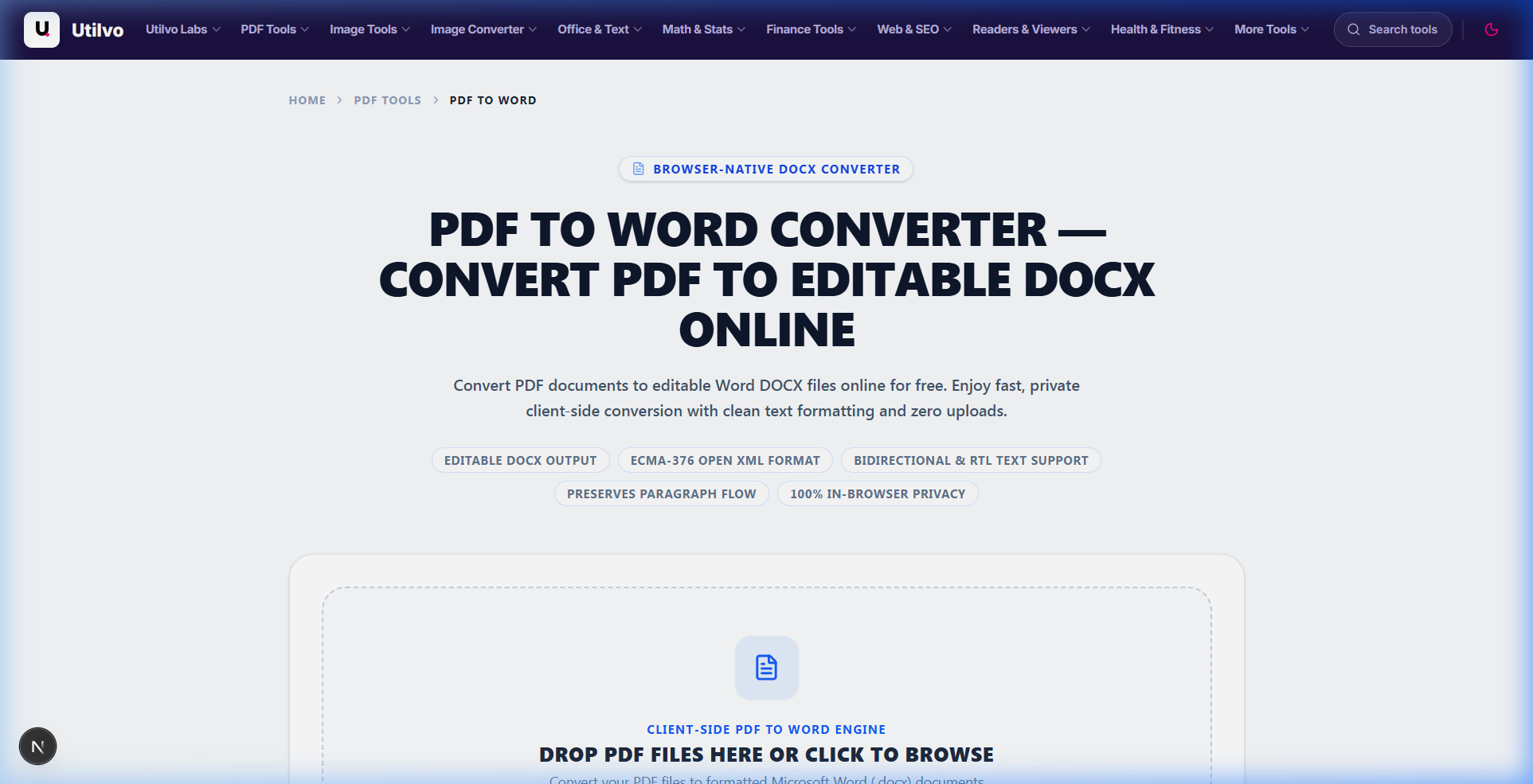
Text spans, coordinate clustering, and OOXML packaging execute locally within your browser sandbox. Confidential documents are never uploaded to remote server disks.
Why Client-Side PDF to Word Conversion Improves Privacy
Most online PDF-to-Word tools upload your legal contracts, financial audits, or medical forms to shared remote virtual machines. Once received on remote servers, headless engines (such as cloud-hosted LibreOffice or proprietary converters) unpack the document structure on shared physical disks, exposing sensitive corporate data to unmonitored server logs and third-party data retention windows.
Utilvo operates entirely inside your web browser. Using WebAssembly-compiled PDF parsers and client-side OOXML generators, coordinate clustering and paragraph synthesis occur within device RAM. Because the processed document is generated locally in your browser, there is no need to upload the file to a remote server before downloading it, eliminating security concerns and network transfer delays.
Step 1: Selecting and Parsing Your PDF Document
Open the PDF to Word tool. Drag your source PDF file into the dropzone. The engine instantly inspects the cross-reference table, determines font subsets, and verifies whether the file contains true digital text or image-only scanned bitmaps.
The Underlying Mechanics: Absolute Glyphs vs Semantic Paragraphs
When a word processor creates a PDF, it compiles dynamic text flow into static 2D drawing instructions like 10 0 0 10 72 712 Tm (Hello World) Tj. These instructions specify exact physical offsets on the page canvas. To build a valid Word DOCX file, the conversion engine groups adjacent glyph bounding boxes based on font size clustering, inter-line vertical spacing, and baseline alignment to synthesize legitimate paragraph structures.
Step 2: Table Reconstruction, Flow Synthesis, and Exporting DOCX
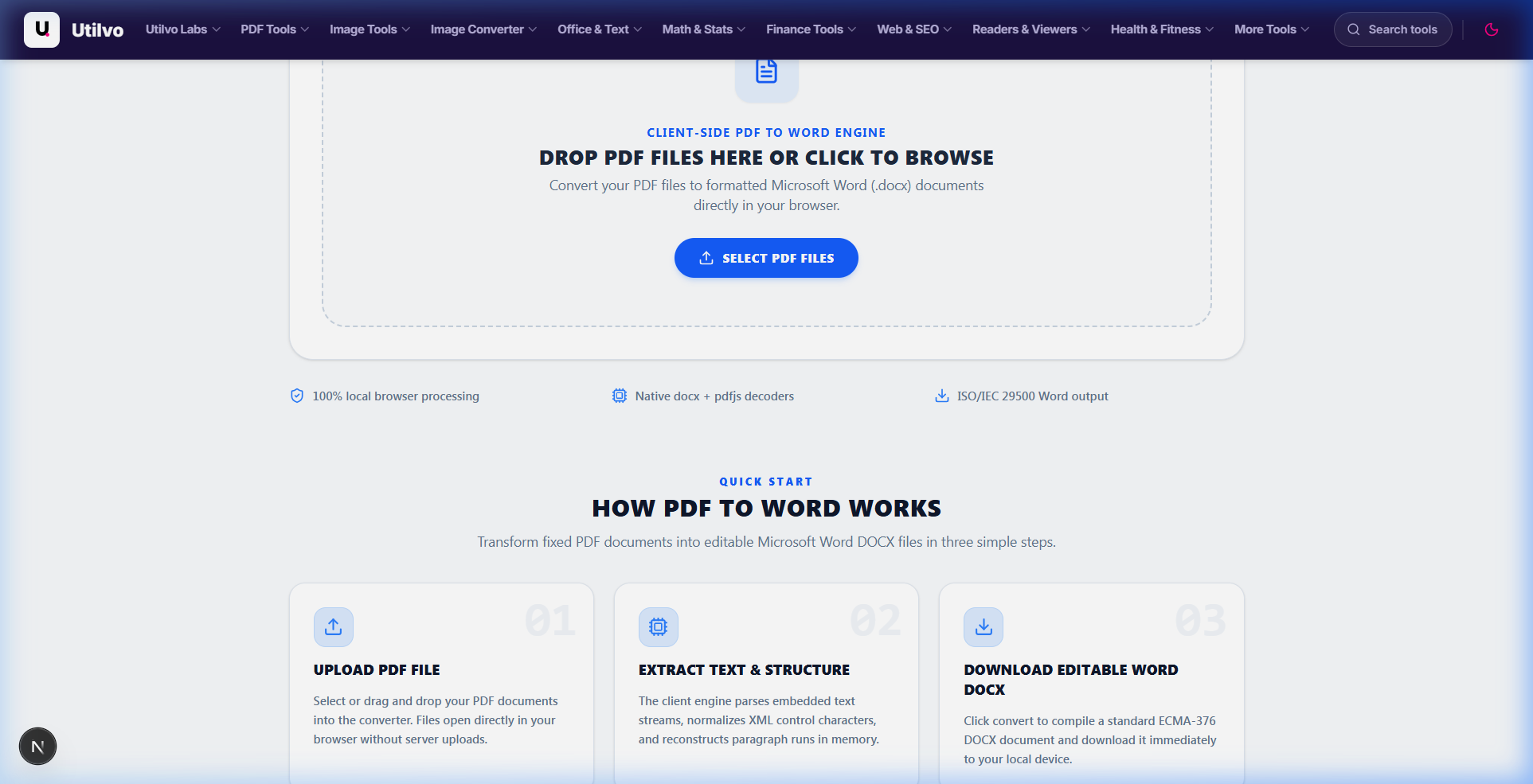
Once structural reconstruction finishes, click Convert to compile the reconstructed layout into an OOXML document. The engine synthesizes tables, maps heading styles, embeds raster images, and provides an immediate one-click download.
Grid Table Recovery
Vector line intersections are mapped into Word grid rows (<w:tr>) and cells (<w:tc>), preserving cell margins and tabular alignment.
Flowing Text Lines
Individual coordinate lines are reflowed into unified paragraphs, avoiding annoying line breaks at the end of every sentence when typing in Word.
Zero Server Ingress
The resulting .docx binary is generated via browser Blob memory, eliminating third-party data retention and subscription paywalls.
Technical Architecture Comparison: Local vs. Cloud PDF Conversion
Evaluating the operational trade-offs between local in-browser document reconstruction and legacy remote server converters:
| File handling | Utilvo | Server-based converters |
|---|---|---|
| File upload | Files remain in your browser | Files are uploaded to a remote server |
| Processing | Client-side (WebAssembly / browser memory) | Server-side queue |
| Download | Generated locally in memory | Processed file returned from server |
| File privacy | No document upload to Utilvo servers | Files stored temporarily on remote disk |
| Document limits | Generous limits bound by available device memory | Frequently capped by 25MB or 50MB file size paywalls |
Formatting Expectations: What Converts Cleanly vs Needs Manual Review
Understanding which document elements recover reliably helps set realistic expectations before opening Microsoft Word:
Converts with Near-Perfect Fidelity
- Single-column reports and memos: Continuous paragraphs reflow seamlessly.
- Ruled tables: Tables with explicit vector borders convert directly into native Word tables.
- Standard font styling: Bold, italic, underline, and relative font sizes are preserved.
- Embedded imagery: Inline raster photos extract with original pixel resolution.
May Require Manual Touch-Ups
- Multi-column brochures: Complex sidebars may convert into absolute-positioned text boxes.
- Border-free tabbed data: Tables lacking lines may convert as tab-separated plain paragraphs.
- Missing proprietary fonts: Subsets fall back to Arial/Calibri if not installed locally.
- Scanned documents: Require an OCR pass first to generate underlying character codes.
Common PDF to Word Pitfalls and How to Avoid Them
Three critical architectural misunderstandings when translating PDF coordinates into Word documents:
1. Converting Scanned PDFs Without a Prior OCR Layer
A scanned physical paper document contains zero character codes; it is merely a full-page TIFF or JPEG wrapped in a PDF shell. Converting directly to Word produces a .docx containing full-page images that cannot be highlighted or edited. Always pass scanned documents through OCR PDF before converting to Word.
2. Editing Floating Text Frames Instead of Flowing Text
When a PDF uses multi-column newspaper layouts, converters place paragraphs into independent Word text boxes to preserve absolute visual positions. Editing text inside one box will not push content into the next column. Enable Word’s "Show/Hide Formatting Marks" (Ctrl+Shift+8) to inspect whether text is inside a table, a box, or a paragraph.
3. Expecting Flattened Revisions and Tracked Changes to Reappear
When a Word author exports to PDF, all revision history, tracked insertions, and deletions are permanently baked into static visual text. No converter can un-bake this history. If revision auditing is critical, always request the source .docx file from the author.
Frequently Asked Questions
Clear, technically grounded answers to common PDF to Word conversion and formatting questions.
Why are paragraphs sometimes split into separate text boxes after conversion?
This occurs due to line-grouping heuristics. In raw PDF streams, every visual line is rendered as an isolated coordinate text-positioning operator rather than a continuous flowing paragraph. If vertical line spacing between lines is irregular, the conversion engine cannot differentiate between a single wrapped paragraph and two distinct text blocks, falling back to absolute-positioned text boxes to avoid disrupting layout geometry.
Why aren't tracked changes or revision history preserved when converting PDF to Word?
Tracked changes exist exclusively in word processor markup (like OOXML w:ins and w:del tags). When an author exports a document to PDF, the rendering engine flattens all revisions into a final composite page stream. The historical revision metadata is permanently stripped before the file ever reaches a converter, meaning no PDF-to-Word tool can reconstruct revision histories.
Why do some tables convert cleanly while others turn into plain text?
Table reconstruction algorithms rely on geometric cues: vector stroke lines, consistent cell boundary intersections, and text alignment. Documents created in Word or LaTeX with explicit grid borders detect with near 100% accuracy. Conversely, documents that simulate tables using manual tab stops or whitespace without border lines appear as plain text lines to the parser, which declines to hallucinate artificial borders.
Why are custom PDF fonts substituted with Arial or Calibri in Microsoft Word?
PDF documents embed font subsets containing only the specific glyphs used on that page (e.g., ABCDEF+Garamond), not complete installable font files. The generated DOCX file references the typeface by name; if the target computer running Microsoft Word lacks that font family in its local operating system library, Word automatically falls back to system defaults like Calibri or Arial.
Can I convert a scanned image-only PDF into an editable Word document?
Not directly without an Optical Character Recognition (OCR) layer. Scanned PDFs consist solely of raster bitmap graphics without underlying character codes. To convert scanned pages into editable DOCX text, run the document through Utilvo's OCR PDF tool first to generate an invisible text layer, then export the recognized document to Word.
Related tools
PDF to Word
Convert PDF documents into editable Word DOCX files while preserving text formatting.
Word to PDF
Convert Microsoft Word DOCX documents into clean, standardized, print-ready PDF files.
OCR PDF
Extract editable text from scanned documents and images directly in your browser.
PDF Editor
Edit PDF text, add shapes, annotate, and re-order pages with an advanced browser suite.
Related guides
How to Merge PDF Files: Step-by-Step Guide
Combine multiple PDF documents into a single cohesive file locally in your browser with zero uploads.
How to Compress a PDF Without Losing Quality
Reduce PDF file size for email and web uploads without compromising text sharpness or DPI fidelity.
How to OCR a PDF and Extract Text
Extract editable text from scanned paper documents, screenshots, and image-only PDFs with client-side OCR.