How to Convert HEIC Photos to JPG on Any Device: Step-by-Step Guide with Screenshots
Since the introduction of iOS 11, Apple devices capture photographs using the High Efficiency Image Container (HEIC) format. While HEIC delivers superior compression via the HEVC (H.265) codec, it remains notoriously incompatible with Windows file explorers, web browsers, and legacy design software. Converting HEIC to standard JPEG requires navigating critical architectural trade-offs: container parsing under ISO/IEC 23008-12, auxiliary depth track handling, Display P3 wide gamut mapping, and zero-upload client privacy.
Utilvo compiles libheif and libjpeg directly into WebAssembly. Your iPhone photos never leave device RAM or travel across remote servers.
Why Client-Side HEIC Conversion Improves Privacy
iPhone photo libraries contain our most intimate personal data: unedited family snapshots, identification cards, medical forms, and geotagged travel logs. Conventional cloud-based HEIC converters force you to upload these high-resolution images to centralized cloud servers running automated conversion scripts. Even when third-party services claim automated deletion, your data is exposed to network interception and disk caching risks.
Utilvo eliminates cloud intermediaries. By compiling the industry-standard libheif C library into a sandboxed WebAssembly module, HEVC bitstreams are decoded directly within your local browser thread. Because the processed image is generated locally in your browser, there is no need to upload the file to a remote server before downloading it, providing complete security and zero network upload delays.
Step 1: Selecting and Importing Your iPhone HEIC Photos
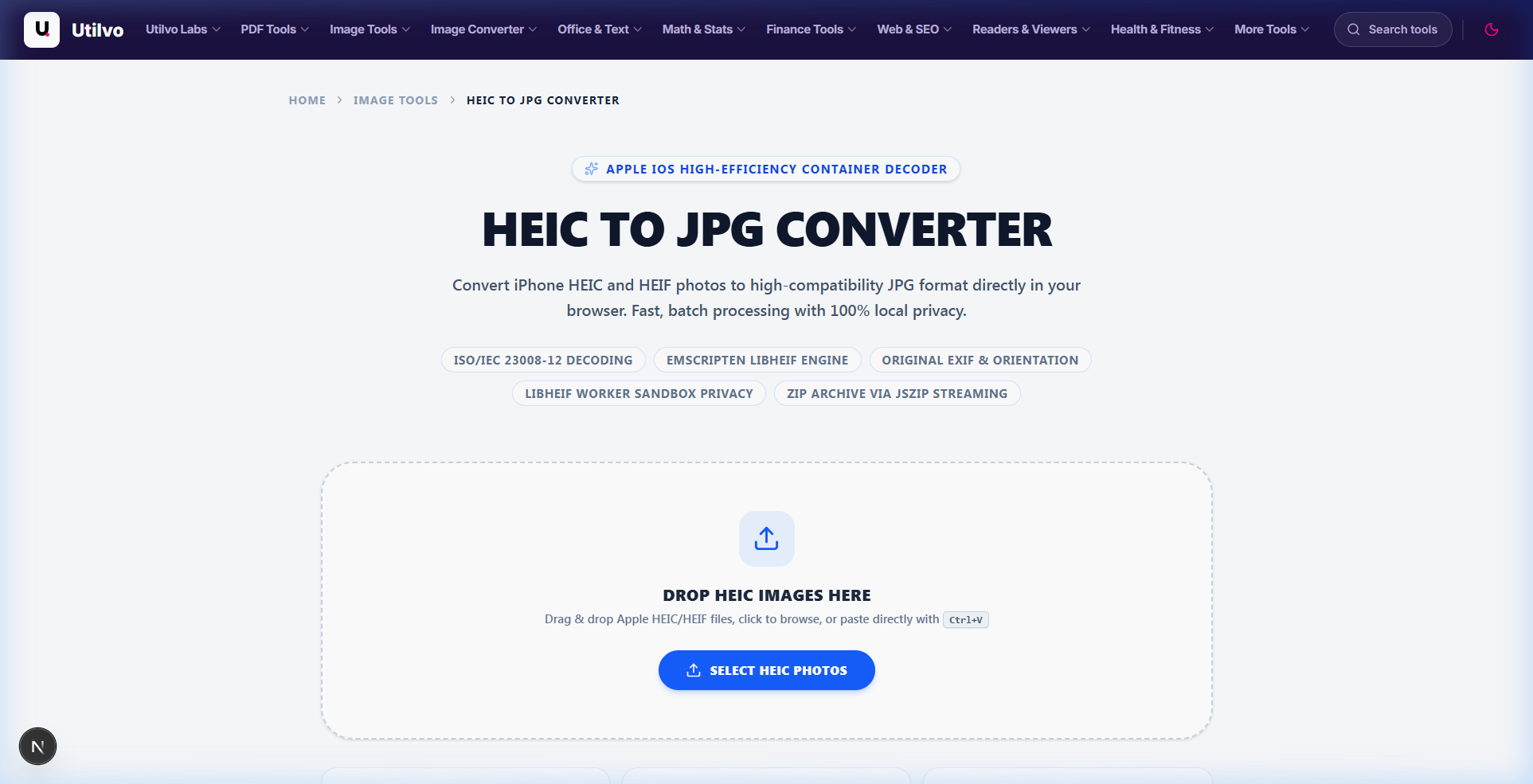
Navigate to the HEIC to JPG Converter. Drag your target .heic or .heif files directly onto the dropzone. The engine immediately parses the High Efficiency container metadata without executing an upload.
The Technical Reality: HEIC is an ISO Container, Not a Simple Image
Defined under ISO/IEC 23008-12, an Apple HEIC file is a structural container based on ISOBMFF (ISO Base Media File Format). Inside a single file, iOS bundles:
- Primary HEVC Bitstream: The main photographic capture encoded with H.265.
- Auxiliary Depth Map: Low-resolution infrared spatial data enabling post-capture Portrait blur.
- HDR Gain Map: Metadata specifying tone mapping thresholds for high dynamic range screens.
- Live Photo Pairing: A synchronized 3-second
.MOVfile accompanying the still shot.
Step 2: Calibrating Quality, Preserving EXIF, and Downloading JPGs
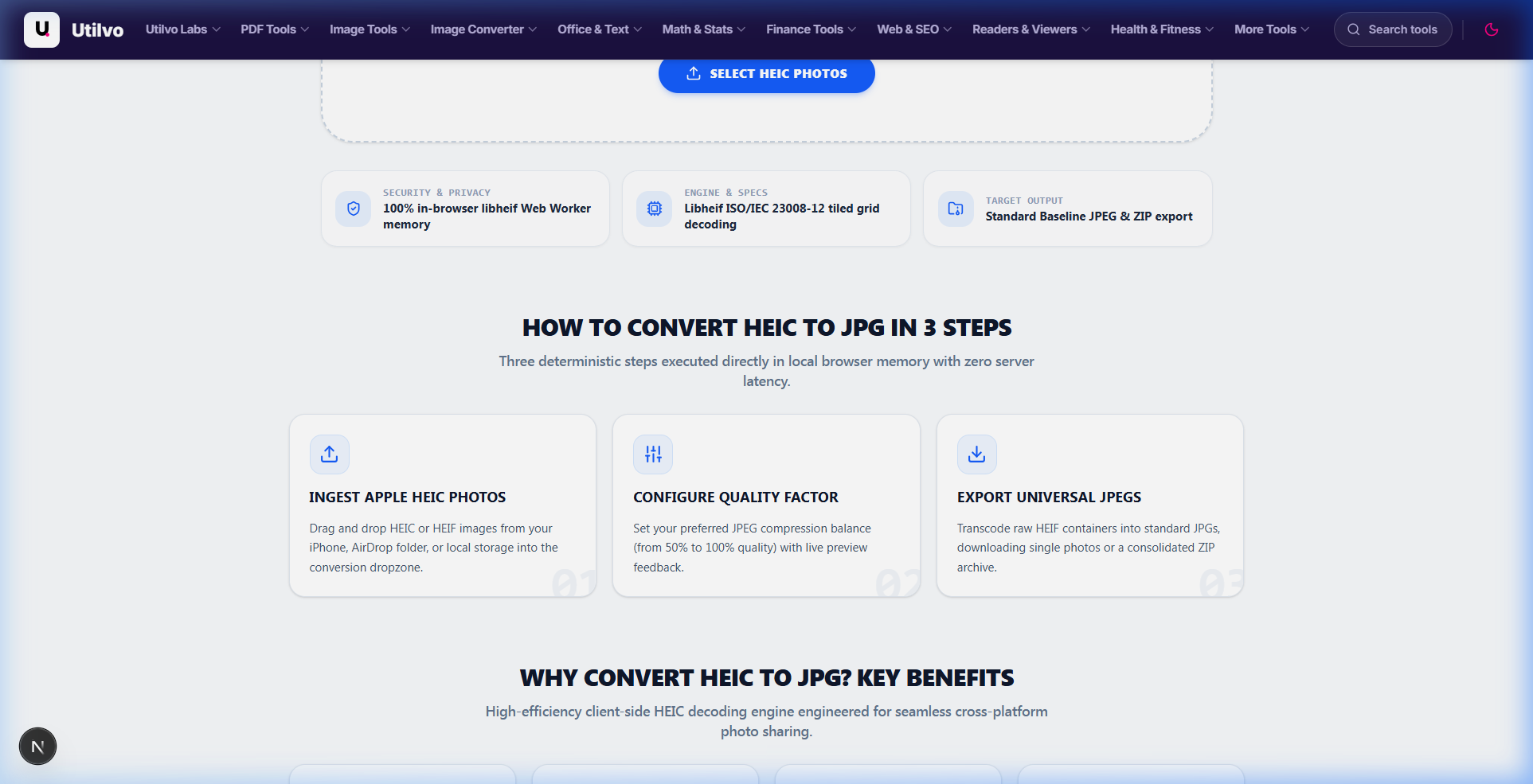
Once imported, the WebAssembly worker unzips the primary HEVC stream and converts pixel data into a standard JPEG format. Review the output specifications, verify that EXIF orientation is preserved, and export your files.
Full EXIF Retention
Utilvo copies all camera metadata blocks intact: GPS coordinates, date timestamps, shutter speed, aperture, and orientation flags.
Color Gamut Mapping
Apple cameras capture in Display P3 wide gamut. Our converter embeds the correct ICC profile so colors never look dull or washed out.
Zero Cloud Bandwidth
Batch convert dozens of gigabytes without hitting mobile data limits or waiting for multi-file cloud upload queues.
Technical Architecture Comparison: Local vs. Cloud HEIC Conversion
Comparing browser-native WebAssembly decoders against legacy remote server conversion services:
| File handling | Utilvo | Server-based converters |
|---|---|---|
| File upload | Files remain in your browser | Files are uploaded to a remote server |
| Processing | Client-side (WebAssembly / browser memory) | Server-side queue |
| Download | Generated locally in memory | Processed file returned from server |
| File privacy | No photo upload to Utilvo servers | Files stored temporarily on remote disk |
| Document limits | Generous limits bound by available device memory | Frequently capped by 25MB or 50MB file size paywalls |
How to Prevent HEIC Files at the Source on iPhone
If you frequently transfer photos to Windows computers or web portals that reject HEIC, you can configure your iPhone camera to shoot natively in JPEG:
iOS Camera Formats Configuration
- Open Settings on your iPhone.
- Scroll down and select Camera.
- Tap Formats at the top of the menu.
- Switch from High Efficiency (HEIC) to Most Compatible (JPEG).
Note: Using "Most Compatible" increases photo storage consumption by approximately 80% to 100% and disables 4K 60fps video recording due to HEVC hardware requirements.
Common HEIC Conversion Pitfalls and How to Avoid Them
Converting multi-track HEIC media containers into legacy JPEG files involves three major pitfalls:
1. Expecting Editable Portrait Bokeh in Converted JPEGs
Portrait photos store a depth map auxiliary track inside the HEIC container. JPEG is a flat single-frame bitstream that cannot hold auxiliary tracks. Once transcoded to JPEG, the depth map is permanently lost, preventing any future adjustment of aperture blur or focal points in photo editors.
2. Display P3 Color Gamut Clipping & Dull Colors
iPhones record photos with wide Display P3 color spaces. Incompetent converter scripts strip the embedded ICC profile chunk, forcing the browser to interpret the pixels as standard sRGB. This results in dull, brownish reds and desaturated foliage greens. Always verify that color profile tags remain embedded.
3. Live Photo Motion Decoupling (.MOV Desynchronization)
An Apple Live Photo consists of a still HEIC paired with an invisible 3-second companion QuickTime video file (.MOV). Transcoding the image exports solely the still photograph, dropping the motion entirely. To keep video motion, export using AirDrop or bundle the files before conversion.
Frequently Asked Questions
Clear, technically sound answers to common HEIC photo format and conversion questions.
Will I lose the Portrait-mode depth and bokeh effect when converting HEIC to JPG?
Yes, editable depth maps are permanently discarded. Under ISO/IEC 23008-12, HEIC stores the depth channel as a secondary auxiliary track. JPEG supports only a single composite 2D image bitstream without auxiliary channels. While the rendered bokeh effect visible in Apple Photos converts into the output JPEG, you will permanently lose the ability to recalibrate the focal plane or adjust blur aperture in post-processing.
Why do converted JPEG photos sometimes look desaturated or dull compared to the iPhone screen?
Modern iPhones capture photographic assets in the Display P3 wide color gamut, which encompasses 25% more chromatic range than legacy sRGB, alongside an HDR gain map. When an image is transcoded to JPEG without proper color profile tagging, non-color-managed web browsers and legacy Windows viewers default to standard sRGB, causing vibrant greens and reds to appear muted. Utilvo automatically maps color profiles to guarantee accurate color representation.
Why does a Live Photo become a static still image after conversion?
An Apple Live Photo consists of two distinct components: a primary high-resolution still image (HEIC) paired with a 3-second companion QuickTime video file (.MOV). Transcoding the HEIC container processes solely the still frame. The paired .MOV motion track is a separate video file that is not part of the static photo bitstream and cannot be embedded inside a standard JPEG.
Why won't raw HEIC files open natively on Windows or older graphics software?
HEIC relies on the HEVC (H.265) compression codec, which is heavily patent-encumbered. Microsoft and open-source operating systems do not bundle native HEVC decoders out of the box due to commercial licensing fees, requiring users to purchase extensions from the Microsoft Store. Transcoding to standard JPEG removes the HEVC licensing barrier, allowing files to open universally across all legacy platforms.
Are GPS location tags, camera EXIF, and timestamps preserved during conversion?
Yes. Utilvo's conversion engine extracts the complete EXIF metadata chunk—including GPS latitude and longitude, timestamp, camera model, ISO, shutter speed, and focal length—and re-injects it into the generated JPEG file header. If privacy is required before sharing publicly, you can strip EXIF data using our metadata cleaner.
Related tools
HEIC to JPG Converter
Convert iPhone HEIC and HEIF photos to universally compatible JPG in your browser.
Convert Image
Convert between JPG, PNG, WebP, AVIF, and 20+ formats directly in your browser memory.
Compress Image
Reduce image file size up to 90% without visible quality loss using smart compression.
Resize Image
Change pixel dimensions with precise control and Lanczos3 anti-aliasing.
Related guides
JPG vs PNG vs WebP vs AVIF: Which Image Format to Use
A comprehensive benchmark of modern image formats covering compression efficiency, browser support, and optimal workloads.
How to Optimize Images for Web Performance
Master WebP and AVIF formats, psychovisual quality settings, and responsive image syntax to slash LCP and page load times.
How to Resize Images Without Losing Quality
Master spatial downsampling, Lanczos interpolation algorithms, and aspect ratio locks for crystal-clear graphics.