How to Resize Images Without Losing Quality: Step-by-Step Guide with Screenshots
Resizing an image is one of the most deceptively simple tasks in digital media. Done incorrectly, photographs become blurry, diagonal lines suffer from stair-stepped pixelation (aliasing), and human faces end up squashed. This engineering tutorial examines the mathematical reality of spatial resampling, compares Bilinear, Bicubic, and Lanczos-3 interpolation algorithms, and details how to execute pixel-perfect downsampling in your local browser sandbox.
Pixel buffers are scaled locally via hardware-accelerated Canvas 2D and WebGL. No image data is ever uploaded to Utilvo servers.
Why Client-Side Image Resizing Improves Privacy
Most online image resizing websites process graphics on remote Linux virtual machines running ImageMagick or libvips. Every time you resize a confidential screenshot, an employee ID badge, or personal family pictures, those binary files travel over public network routes and sit on remote staging disks until an automated cron job cleans them up.
Utilvo removes the server entirely from the resizing pipeline. Your browser allocates a local bitmap buffer inside device RAM. The resizing transformation is computed directly using the GPU-accelerated HTML5 Canvas 2D context or WebAssembly pixel shaders. Because the processed image is generated locally in your browser memory, there is no need to upload the file to a remote server before downloading it, eliminating security concerns and network transfer delays.
Step 1: Selecting and Inspecting Your Image Document
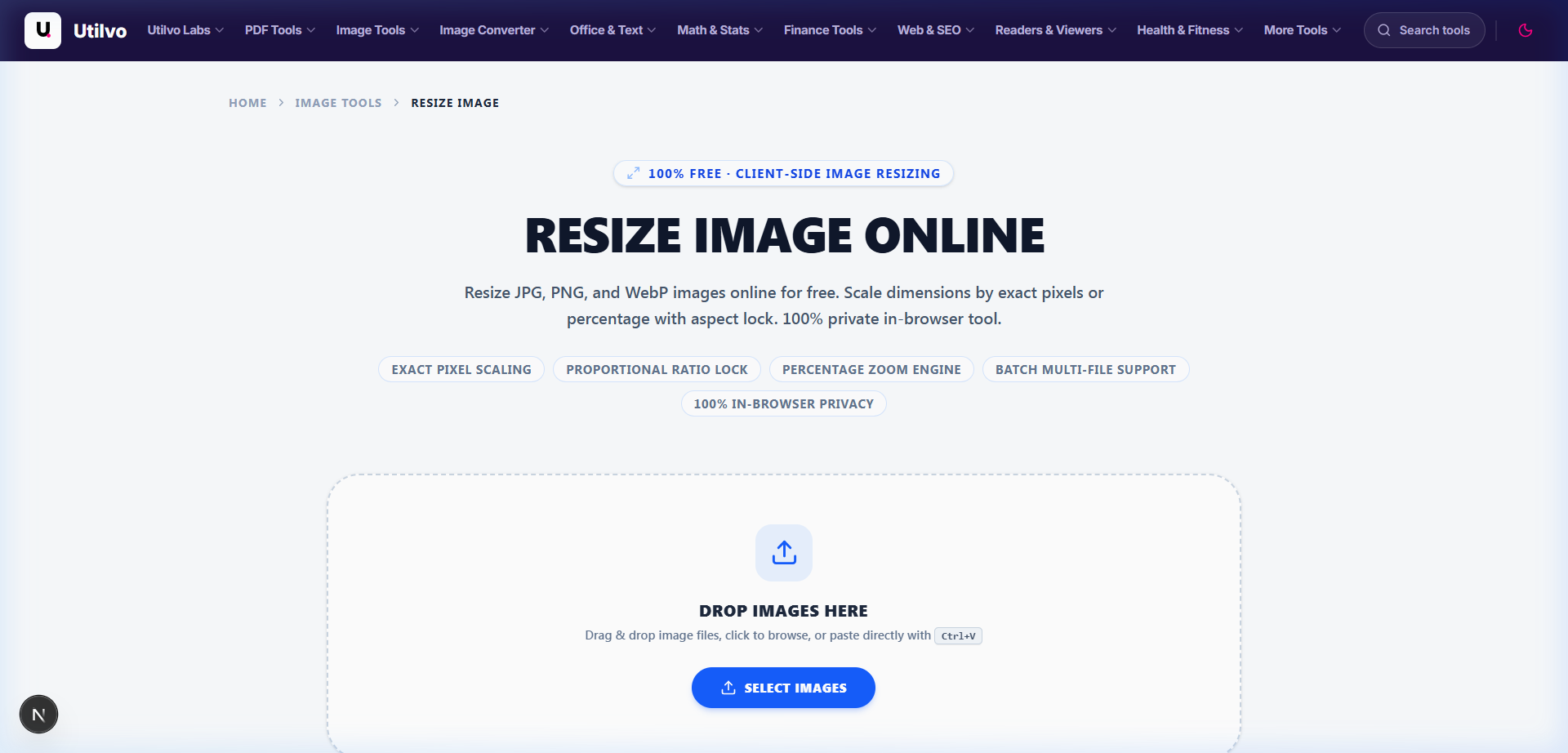
Open the Resize Image tool. Drag your target image into the upload dropzone or click to select from your local drive.
The Golden Rule: Downsampling Preserves Quality, Upscaling Softens It
Decreasing pixel dimensions (downsampling from 4000x3000 to 1200x900) retains sharpness because you are compressing existing light data into a denser pixel grid. In contrast, increasing dimensions (upscaling from 600x400 to 2400x1600) requires the algorithm to interpolate non-existent optical information, which inevitably produces soft edges.
Step 2: Configuring Dimensions and Interpolation Modes
In the resizing configuration panel, enter your desired target width or height. Ensure the Aspect Ratio Lock toggle is enabled so that when you change width, height automatically calculates proportionately to prevent stretching.
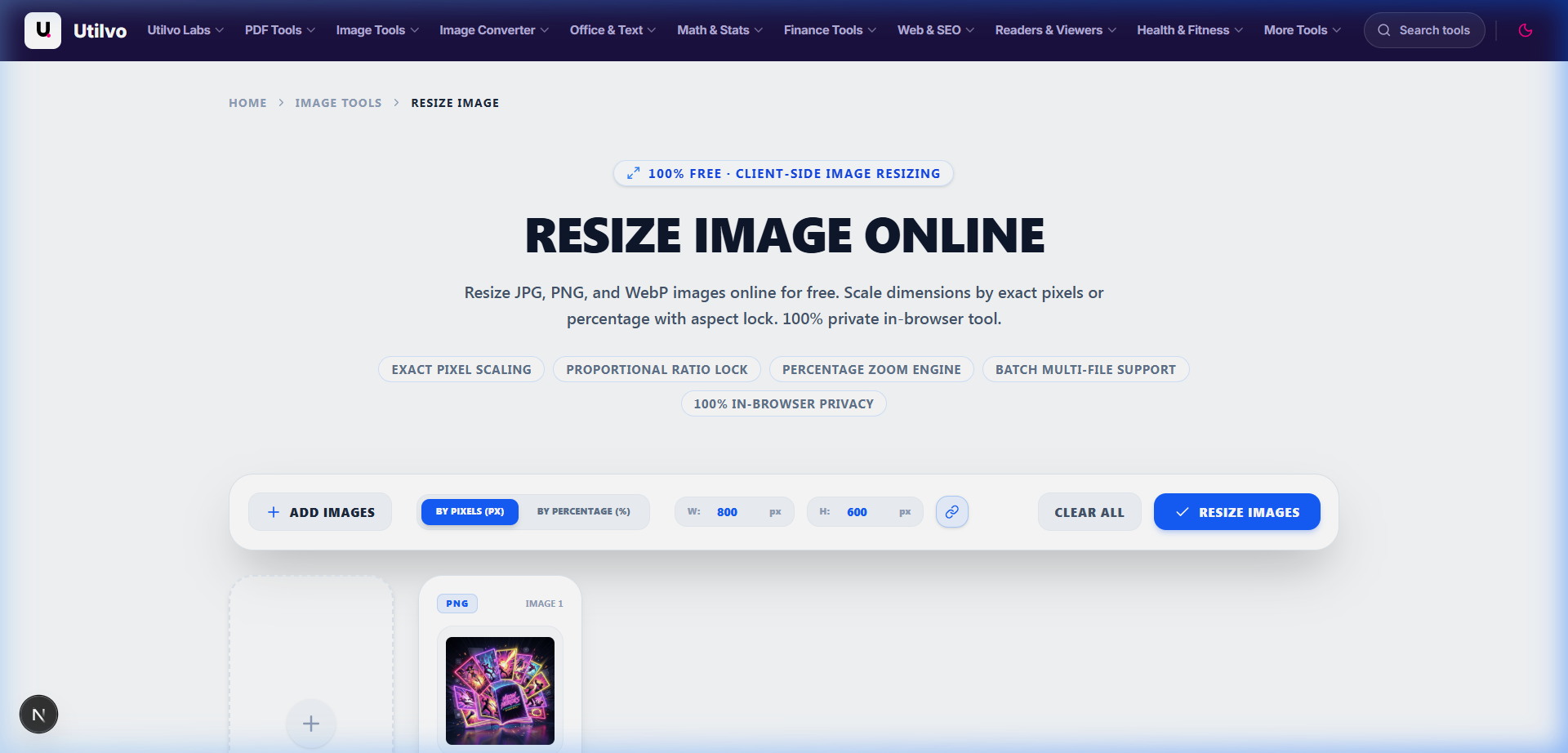
Aspect Ratio Lock (Preserve Geometry)
Guarantees proportional scaling ($Width \div Height = Constant$). Keeps circular logos circular and preserves accurate architectural proportions.
Lanczos3 Resampling Filter
Applies a 3-lobe windowed sinc filter to calculate weighted averages of neighboring pixels, maximizing fine detail and edge crispness.
Step 3: Exporting and Saving the Resampled File
Click Resize Image. The client-side graphics pipeline computes the pixel transformation in under 100 milliseconds and displays the final resolution and file size.
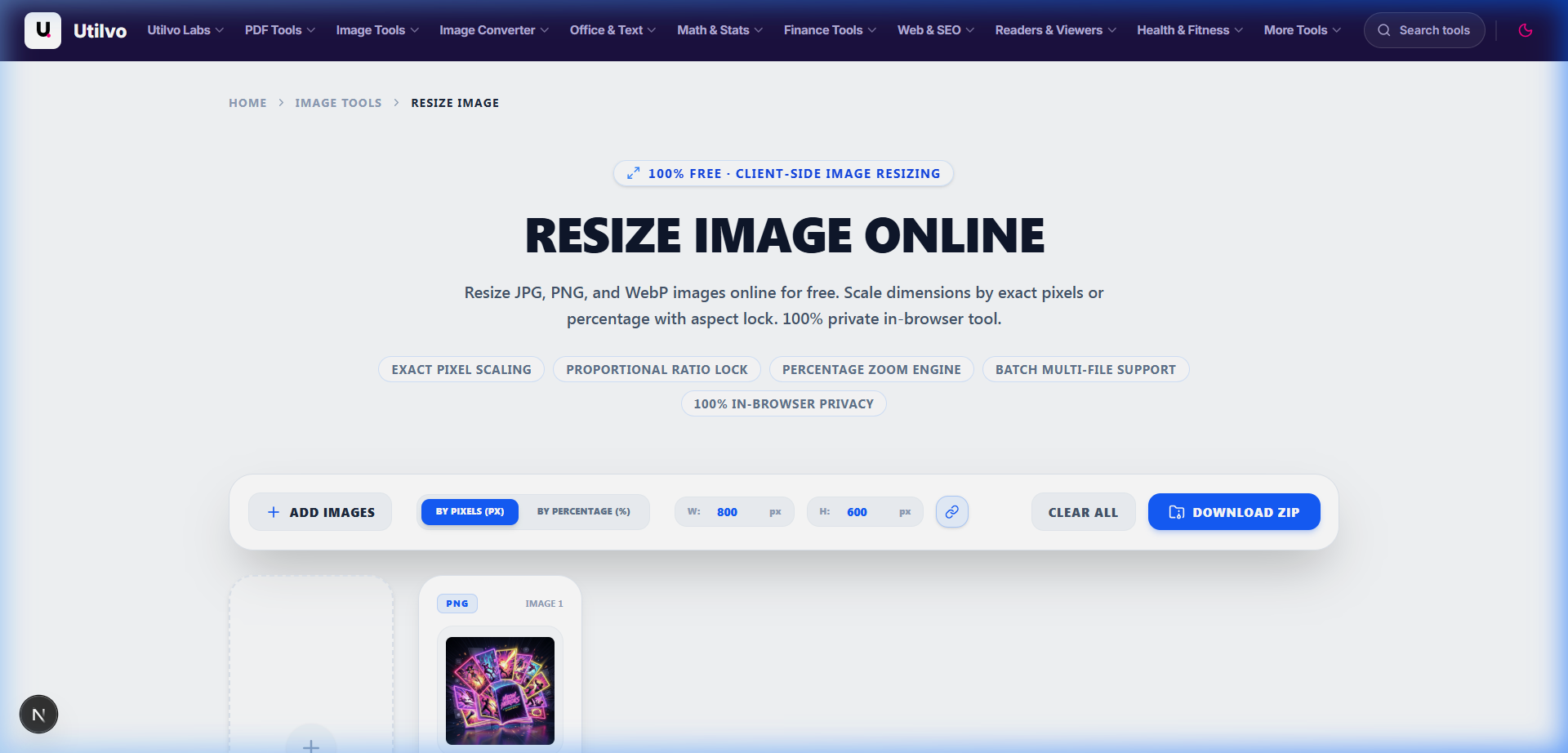
Because the resized image is generated locally in your browser memory, there is no need to upload the processed document to a remote server before downloading it. Click Download Resized Image to save the optimized file directly to your disk.
Technical Architecture Comparison: Local vs. Cloud Resizing
Understanding the infrastructure differences between client-side HTML5 Canvas resampling and cloud-based converter queues:
| File handling | Utilvo Client Resizer | Server-based converters |
|---|---|---|
| File upload | Files remain in your browser | Files are uploaded to a remote server |
| Processing | Client-side (HTML5 Canvas / WebAssembly) | Remote server task queue (ImageMagick) |
| Download | Generated locally in memory | Processed file returned from server over WAN |
| File privacy | No image upload to Utilvo's servers | Files stored temporarily on remote disk |
| Document limits | Generous limits bound by available device memory | Strict file size and resolution paywalls |
Mathematical Comparison of Resampling & Interpolation Algorithms
When resizing an image, every new pixel coordinate rarely falls squarely on an original pixel center. The resampling filter determines how color values from surrounding source pixels are weighted:
| Algorithm | Kernel Window | Sharpness | Aliasing (Jaggies) | Best Use Case |
|---|---|---|---|---|
| Nearest Neighbor | 1x1 (1 pixel) | Extreme / Harsh | Severe | Pixel art, retro 8-bit sprites, UI masks |
| Bilinear | 2x2 (4 pixels) | Moderate / Soft | Low | Real-time video scaling, fast previews |
| Bicubic (Mitchell) | 4x4 (16 pixels) | High / Balanced | Very Low | Standard photographic resizing |
| Lanczos-3 (Sinc) | 6x6 (36 pixels) | Superior / Edge-Crisp | Minimal | High-fidelity web publishing & photography |
The Multi-Step Downsampling Technique for Large Assets
When scaling a very large image (such as a 48-megapixel camera RAW export of 8000x6000 pixels) directly down to a small web thumbnail (such as 400x300 pixels), a single-pass downsampling algorithm skips vast swathes of pixels. This causes high-frequency shimmer and Moiré patterns across fine fabrics, brick walls, and hair textures.
To prevent Moiré artifacts, professional image pipelines employ half-step downsampling: reducing the image by 50% iteratively across consecutive canvas buffers until within 2x of the target size, followed by a final Lanczos pass. Utilvo incorporates this step-down architecture automatically behind the scenes.
Common Image Resizing Pitfalls and How to Avoid Them
1. Unlocked Aspect Ratio Anamorphic Distortion
Forcing an arbitrary width and height without respecting the original aspect ratio compresses the horizontal or vertical axes unevenly. If you need a square banner from a landscape photo, crop the photo first using the Crop Image tool, then resize the resulting square to your target dimensions.
2. Confusing DPI Metadata with Pixel Resolution
A 1920x1080 pixel image saved at 72 DPI contains the exact same number of pixels and downloads at the exact same speed as a 1920x1080 pixel image marked 300 DPI. DPI is solely an instruction for commercial printing plates. For web display, ignore DPI and focus entirely on pixel width and height.
3. Forgetting to Compress After Resizing
Resizing an image reduces dimension, but exporting uncompressed 24-bit RGB still leaves substantial bloat. Once your dimensions are set, pass the image through the Compress Image tool or export to modern WebP to eliminate redundant high-frequency bytes.
Frequently Asked Questions
Technical answers regarding upscaling limitations, interpolation algorithms, and aspect ratio controls.
Can you upscale a small image without losing quality?
No conventional mathematical algorithm can invent new optical data that was never recorded by the camera sensor. Upscaling stretches existing pixels, requiring algorithms like Bilinear or Bicubic to interpolate intermediate values, which inherently softens sharp edges. For clean upscaling without blur, neural super-resolution models are required, whereas downsampling retains or enhances perceived sharpness by concentrating optical data into fewer pixels.
What is the best resampling algorithm for resizing photographs?
Lanczos-3 (a windowed sinc filter using a 3-lobe kernel) is widely considered the gold standard for photographic downsampling because it preserves high-frequency edge transitions while minimizing aliasing. Bicubic interpolation is the standard fallback for general web graphics, offering a smooth balance between sharpness and computation speed.
Why do my resized images look squashed or stretched?
Distortion occurs when an image is scaled with an unlocked aspect ratio. If you alter the width without proportionally adjusting the height (for instance, forcing a 4:3 camera photo into a 16:9 banner container), circles become ellipses and human faces stretch. Always ensure the aspect ratio lock toggle is active, or crop the canvas before resizing.
Does changing DPI (dots per inch) alter the actual file size on screen?
No. DPI is simply a metadata tag embedded in the file header intended for physical printing devices to determine physical print dimensions. On screens and web browsers, image display size and byte weight are governed entirely by pixel dimensions (width x height) and compression encoding, not the DPI tag.
Are my images uploaded to any remote server when using Utilvo's Resizer?
No. All resizing, pixel interpolation, and format encodings in Utilvo execute 100% locally within your browser sandbox via HTML5 Canvas and WebAssembly. Your photos never leave your device memory.
Related tools
Resize Image
Change image dimensions with precise control and Lanczos3 anti-aliasing.
Crop Image
Trim and crop images to any aspect ratio with interactive drag handles.
Convert Image
Convert between JPG, PNG, WebP, AVIF, and 20+ formats directly in your browser.
Compress Image
Reduce image file size without visible quality loss using balanced profiles.
Related guides
How to Optimize Images for Website Performance
Practical techniques for optimizing images to improve website loading speed, including resizing and responsive sizing.
Image Compression: Lossy vs Lossless Explained
Understand the difference between lossy and lossless image compression, quality settings, and psychovisual limits.
JPG vs PNG vs WebP vs AVIF: Which Image Format to Use
A detailed comparison of popular image formats covering compression, transparency, browser support, and optimal workloads.