JPG vs PNG vs WebP vs AVIF: Which Image Format to Use
Images account for over 50% of the total wire payload transferred across the modern web. Selecting the right container is not merely an aesthetic choice — it dictates Core Web Vitals (Largest Contentful Paint), mobile bandwidth consumption, and server CPU encode budgets. This comprehensive engineering guide dissects JPG, PNG, WebP, and AVIF across their underlying mathematical transforms, compression ratios, alpha masking support, and browser decoding performance.
All format re-encoding runs locally in browser RAM via HTML5 Canvas and WebAssembly. No image files are uploaded to Utilvo servers.
Why Client-Side Image Conversion Improves Privacy
Legacy cloud image converters force you to upload high-resolution photographs, personal screenshots, or proprietary product graphics over the public Internet to third-party processing queues. This creates substantial exposure to server-side data retention, cloud bucket vulnerabilities, and unencrypted transit snooping.
Utilvo takes an entirely different architectural path: image buffers are parsed, resized, and transcoded locally inside your web browser sandbox using modern Web Workers, the HTML5 Canvas 2D API, and WebAssembly compiled codecs. Because the image bytes are decoded and re-encoded in client-side RAM, your pictures are never transmitted across the network, reducing the privacy risks associated with uploading sensitive documents to a third-party processing server.
Step 1: Uploading and Inspecting Your Image Source
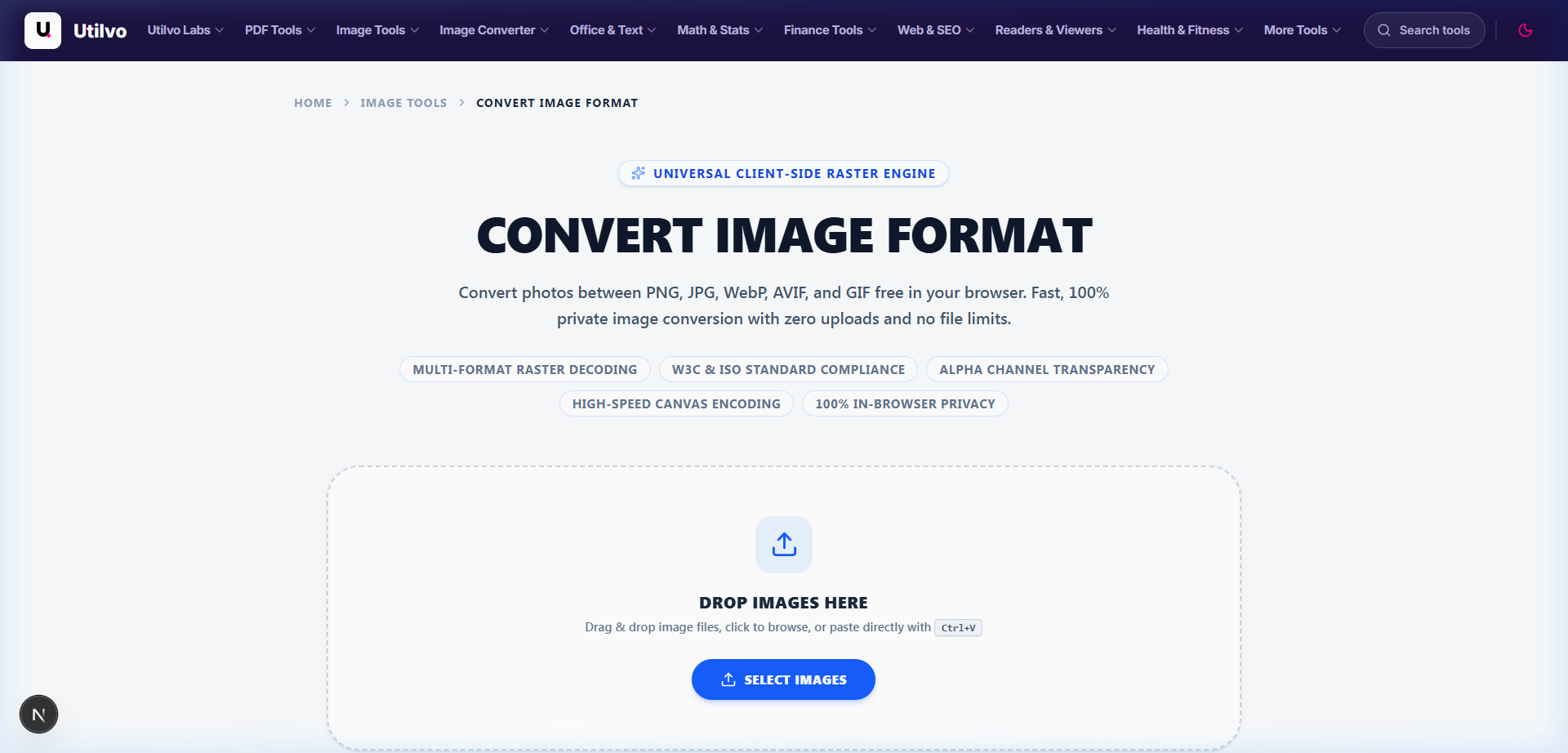
Navigate to the Convert Image workspace. Drag and drop any raw image file — including JPG, PNG, WebP, AVIF, BMP, or TIFF — into the responsive upload boundary.
Engineering Tip: Always Start from the Master Uncompressed Source
Converting an already-compressed lossy JPG to WebP or AVIF results in generational loss (transcoding degradation). For the highest compression efficiency and visual fidelity, export your graphics as high-depth PNG or uncompressed TIFF from your design software before running the batch conversion pass.
Step 2: Selecting the Target Format and Quality Profile
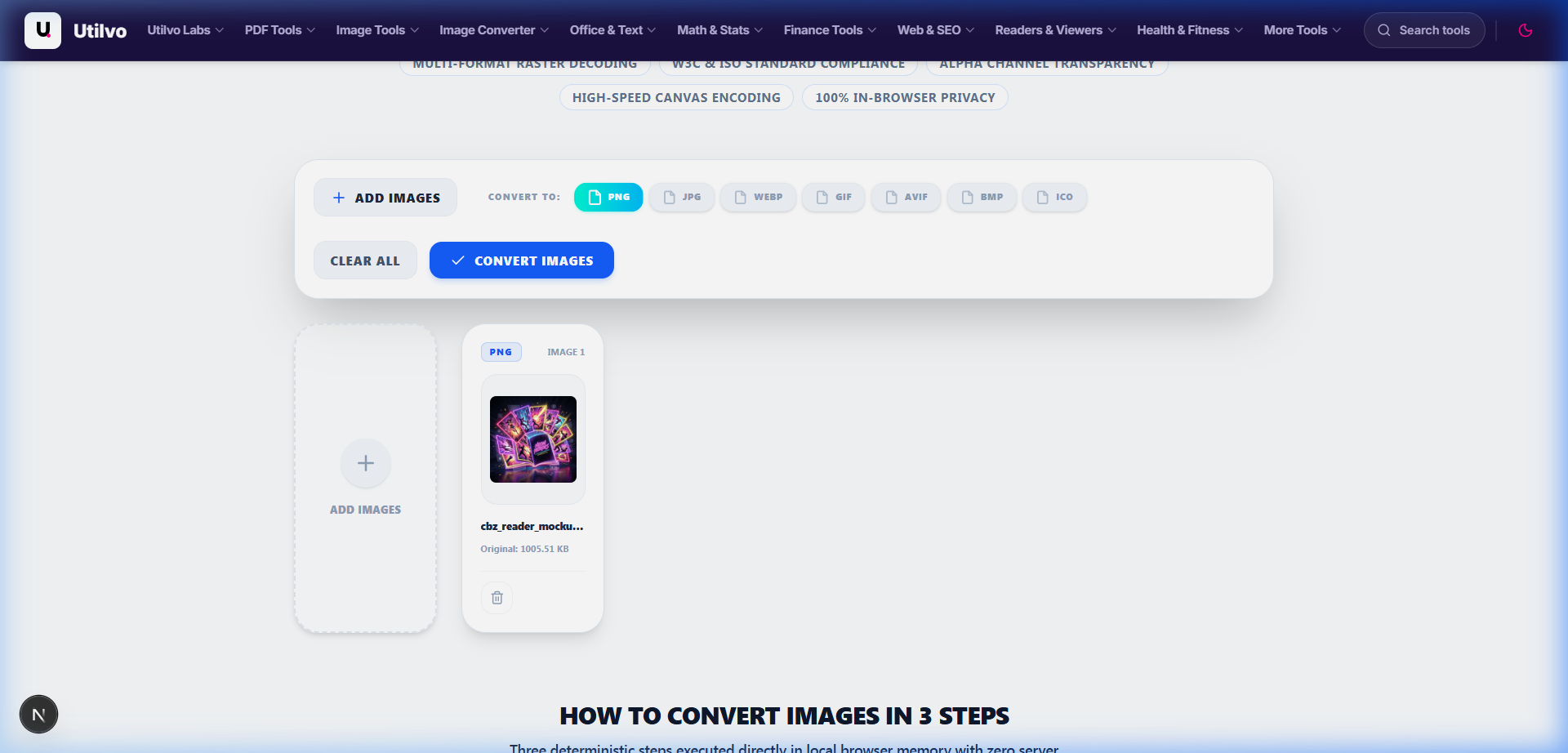
Once loaded, the interactive workspace displays image metadata alongside an output format selector. Choose between WebP (for balanced production web delivery), AVIF (for maximum compression savings on modern browsers), PNG (for lossless graphics with transparency), or JPG (for universal backwards compatibility).
WebP Quality 80–85 Profile
The recommended universal default for online publishing. Delivers a 30% byte reduction compared to JPG 85 with imperceptible structural distortion (SSIM > 0.98).
AVIF Quality 65–75 Profile
The next-generation compression standard. Achieves up to 50% byte savings compared to JPG by leveraging AV1 inter/intra-frame spatial transforms and directional block partitioning.
Step 3: Generating and Saving the Optimized File
Click Convert Image. The client-side encoding engine processes your image in real-time, displaying the exact byte reduction and compression ratio before saving.
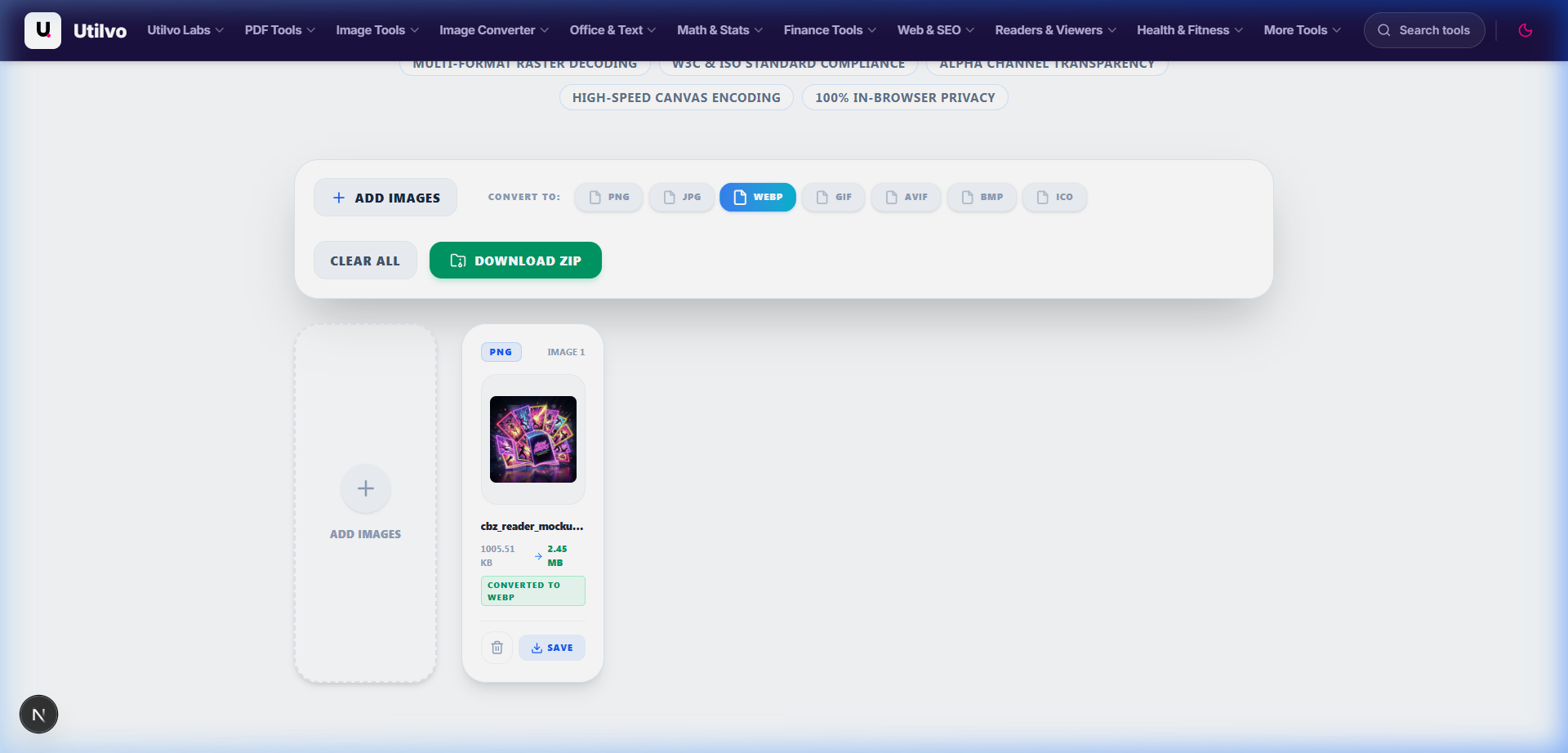
Because the converted image is generated locally in your browser memory, there is no need to upload the processed document to a remote server before downloading it. Clicking Download Converted Image instantly flushes the binary ArrayBuffer to your local storage.
Technical Architecture Comparison: Local vs. Cloud Image Processing
Evaluating client-side browser execution against legacy server-based cloud converters demonstrates critical differences in data confidentiality, network latency, and processing ceilings:
| File handling | Utilvo Client Engine | Server-based converters |
|---|---|---|
| File upload | Files remain in your browser | Files are uploaded to a remote server |
| Processing | Client-side (WebAssembly / browser memory) | Server-side queue (ImageMagick / libvips) |
| Download | Generated locally in memory | Processed file returned from server via WAN |
| File privacy | No image upload to Utilvo's servers | Files stored temporarily on remote disk |
| Document limits | Generous limits bound by available device memory | Frequently capped by 10MB or 25MB paywalls |
Comprehensive Image Format Technical Comparison Matrix
The four major raster formats occupy distinct positions on the efficiency vs. compatibility spectrum. Below is an architectural breakdown of their internal codecs, color depths, and compression mechanics:
| Feature | JPG (JPEG) | PNG | WebP | AVIF |
|---|---|---|---|---|
| Compression Type | Lossy only | Lossless only | Lossy & Lossless | Lossy & Lossless |
| Alpha Transparency | No | Yes (8-bit alpha) | Yes (in lossy & lossless) | Yes (in lossy & lossless) |
| Animation Support | No | No (APNG niche) | Yes (Replaces GIF) | Yes (AVIF sequence) |
| Global Browser Support | ~100% | ~100% | ~97.5% | ~93.8% |
| Color Depth Support | 8-bit per channel | 8 or 16-bit | 8-bit per channel | 8, 10, or 12-bit (HDR) |
| Relative File Size | 100% (Baseline) | 350% – 800% (Photos) | 65% – 75% | 50% – 60% |
| Encoding Compute Speed | Ultra-Fast | Fast | Fast (VP8 optimized) | Moderate / CPU-Heavy |
| Optimal Use Case | Legacy email & printed photos | Pixel-perfect logos & UI icons | Universal web publishing default | Bandwidth-critical hero graphics & HDR |
Production Implementation: The Progressive <picture> Pattern
In modern frontend engineering, you do not need to choose a single format at the expense of older browsers. By leveraging semantic HTML5 <picture> elements, the browser automatically negotiates content headers and parses the highest-efficiency container it supports:
<picture>
  <!-- 1. High-efficiency AVIF for supported modern browsers (93%+) -->
  <source srcset="/images/hero-banner.avif" type="image/avif" />

  <!-- 2. Optimized WebP fallback for wider compatibility (97%+) -->
  <source srcset="/images/hero-banner.webp" type="image/webp" />

  <!-- 3. Baseline JPEG fallback with explicit aspect ratio to prevent CLS -->
  <img
    src="/images/hero-banner.jpg"
    alt="High-resolution architectural photography"
    width="1280"
    height="720"
    loading="lazy"
    decoding="async"
    class="w-full h-auto rounded-xl object-cover"
  />
</picture>
This architecture delivers three critical technical benefits:
- Cumulative Layout Shift (CLS) Immunity: Defining explicit
widthandheightattributes on the inner<img>tag reserves the exact aspect ratio box in the CSS rendering tree before bytes download. - Progressive Bandwidth Savings: Modern Chrome, Safari, and Firefox clients download the ultra-compact AVIF asset (~140 KB), while legacy enterprise viewers fall back cleanly to JPEG (~380 KB) without blank image errors.
- Asynchronous Decoding: The
decoding="async"directive instructs the browser to decode image buffers off the main thread, preventing UI thread stutter and input latency during heavy scrolling.
Common Image Formatting Pitfalls and How to Avoid Them
1. Converting Compressed JPEGs to PNG to "Enhance Quality"
A common misconception is that converting a lossy JPG image into a lossless PNG container restores lost pixel clarity. Because JPEG permanently discards high-frequency color data during DCT quantization, transcoding to PNG only freezes the existing blur and compression ringing into a rigid format, swelling file size by 300% to 500% with zero visual benefit. Always maintain original uncompressed master files.
2. Over-Compressing AVIF Assets on Low-End Mobile Devices
While AVIF delivers stunning byte compression, older smartphones lack dedicated hardware AV1 decoders. Decoding high-resolution 4K AVIF hero assets via software emulation consumes significant battery power and can cause frame drops during initial page render. For budget mobile audiences, WebP at quality 80 remains the more responsive and battery-efficient production choice.
3. Stripping ICC Color Profiles Without sRGB Normalization
Camera captures saved in wide color gamuts (like Display P3 or Adobe RGB) appear washed out or muddy when stripped of their embedded ICC color profile during web optimization. Utilvo automatically maps color gamuts back to standard sRGB before export, ensuring consistent contrast and saturation across all displays.
Frequently Asked Questions
Real-world engineering questions addressing image compression trade-offs, transparency behavior, and client-side conversion security.
Does converting a JPG to PNG improve its visual quality?
No. JPG uses lossy compression where discarded frequency data is permanently lost. Converting a JPG to PNG stores the existing lossy artifacts into a larger, uncompressed or Flate-compressed container without restoring any high-frequency detail. The resulting PNG is typically 3x to 5x larger with identical visual fidelity. Always convert from the uncompressed master source.
Should I use WebP or AVIF as the primary format for website images?
WebP is the recommended universal production default due to 97%+ global browser support, fast hardware decoding, and 25-34% smaller footprints than JPG. AVIF delivers 15-20% higher compression efficiency than WebP at equivalent visual scores, but requires substantially more CPU encoding time. The gold standard for modern web engineering is serving AVIF via the HTML picture element with a WebP fallback and JPG baseline.
Why does PNG produce significantly larger file sizes for photographs?
PNG uses DEFLATE (LZ77 + Huffman coding) which compresses predictable, repeating patterns losslessly. Natural photographs contain millions of continuous color gradients, optical noise, and non-repeating high-frequency transitions, which defeat dictionary-based compression. Lossy formats like JPG, WebP, and AVIF discard imperceptible chroma detail through spatial quantization, achieving 10:1 to 20:1 size reductions.
Does WebP support transparency in lossy compression mode?
Yes. One of WebP's major architectural advantages over JPG and PNG is its support for 8-bit alpha channel transparency alongside lossy VP8 compression. In contrast, JPG cannot store alpha channels at all, and PNG only preserves transparency in lossless mode. WebP allows semi-transparent photographic assets and UI badges to load at a fraction of PNG file sizes.
Does converting images in Utilvo upload my private pictures to an external server?
No. All format conversions in Utilvo execute client-side inside your browser sandbox using HTML5 Canvas APIs, Web Workers, and WebAssembly. Your image binary data remains in local device memory and is never transmitted to Utilvo's servers or stored on remote cloud infrastructure.
Related tools
Convert Image
Convert between JPG, PNG, WebP, AVIF, and 20+ formats directly in your browser.
Compress Image
Reduce file sizes with balanced lossy or lossless compression and zero quality loss.
Resize Image
Change pixel dimensions with precise aspect ratio locking and Lanczos resampling.
Crop Image
Trim borders, center focal points, and export to social media aspect ratios.
Related guides
How to Optimize Images for Website Performance
Practical techniques for improving Core Web Vitals (LCP) through responsive sizing and lazy loading.
Image Compression: Lossy vs Lossless Explained
Understand the mathematical differences between entropy reduction and psycho-visual spatial quantization.
How to Convert HEIC to JPG
Convert Apple iOS camera captures into universally compatible JPEG files while preserving EXIF metadata.