The Fundamental Disconnect: Visual Coordinates vs. Semantic Structure
When humans look at a PDF page, our visual cortex effortlessly recognizes headings by their font size and weight, distinguishes paragraphs by vertical margins, groups bulleted lists into contiguous blocks, and decodes multi-column flows. We assume that because a document looks impeccably organized on a high-resolution display, software can understand it identically.
In reality, native PDF files (ISO 32000-2) are digital printing plates composed of absolute Cartesian coordinates (x, y). Text rendering commands such as Tj and TJ instruct the PDF engine to paint glyph silhouettes at explicit point offsets. The raw file contains no inherent concept of sentences, flowing paragraphs, logical hierarchies, or data tables.
The Architecture of a Tagged PDF: Inside /StructTreeRoot
To bridge the gap between visual layout and assistive technology, ISO 32000 defines the Logical Structure facility, formalized into strict accessibility rules under PDF/UA (ISO 14289-1). A tagged PDF embeds an independent, hidden object tree known as the /StructTreeRoot.
Structural Hierarchy (StructElem)
Much like HTML DOM nodes, PDF structure elements designate semantic roles: Document→ Part→ Sect→ H1..H6, P, Table, and L (List).
Marked Content Identifiers
Visual glyphs in page content streams are bounded by /Span << /MCID 0 >> BDC ... EMC operators. The structure tree node references these MCID integers, binding semantic tags to visual rendering coordinates.
Legal Mandates: WCAG 2.1/2.2 AA, Section 508, and the European Accessibility Act
PDF accessibility is no longer merely an engineering best practice; it is a legally enforced compliance mandate across government, educational, healthcare, and enterprise sectors globally:
Standard Clarification: PDF/UA (ISO 14289) vs. PDF/A (ISO 19005)
A pervasive misconception among developers and compliance officers is conflating PDF/A with PDF/UA. While both are ISO standards governing PDF architecture, their core objectives are completely orthogonal:
| Standard | Primary Objective | Mandatory Requirements | Accessibility Status |
|---|---|---|---|
| PDF/UA-1 (ISO 14289-1) | Universal Accessibility for Assistive Tech | Complete tag tree, linear reading order, alt text, title, document language | Fully Accessible |
| PDF/A-1b / PDF/A-2b | Visual Archival Preservation | Embedded fonts, color profiles, no JavaScript, no dynamic encryption | Inaccessible without tags |
| PDF/A-1a / PDF/A-2a | Archival Preservation + Basic Tags | PDF/A-1b rules plus logical tags and Unicode mapping | Partially accessible (often lacks UA alt text rules) |
| PDF/UA-2 (ISO 14289-2) | Next-Gen Accessibility on ISO 32000-2 | MathML support, refined structure tree namespaces, vector artifact tags | State-of-the-Art |
Step-by-Step Remediation Workflow: Auditing and Correcting PDF Tags
Utilvo provides a completely private, client-side toolsuite that inspects and repairs PDF accessibility issues directly inside WebAssembly memory without sending sensitive documents to external cloud servers.
Auditing Document Tags and WCAG 2.1 Compliance
Begin by opening the PDF Accessibility Checker. Select the audit standard: WCAG 2.1 AA or PDF/UA-1. Drop your document into the client-side parsing zone. The engine reads the binary stream in-browser, parsing the /StructTreeRoot and generating an instant diagnostic audit.
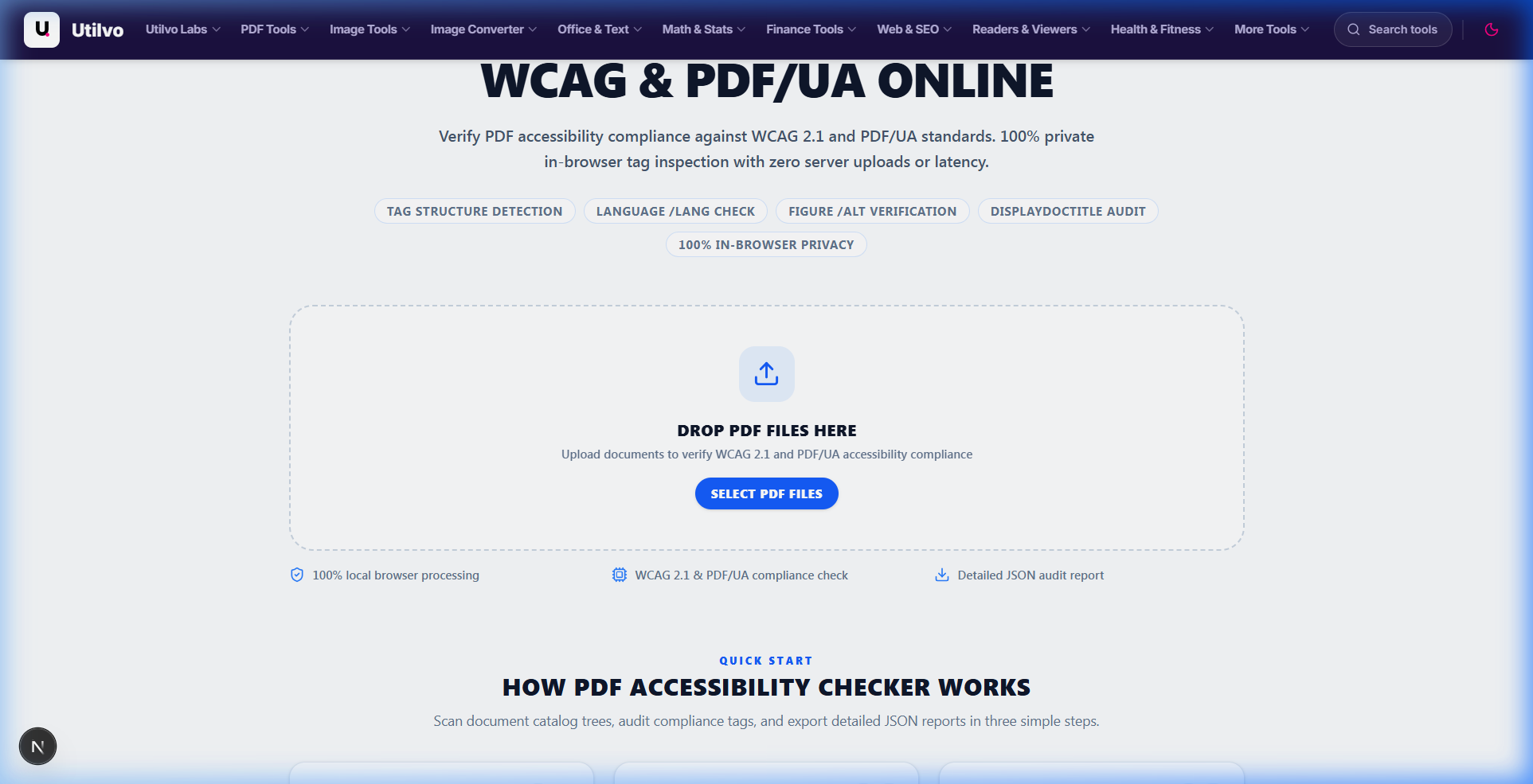
Figure 1: Utilvo PDF Accessibility Checker dropzone with client-side WCAG compliance inspection engine.
Remediating Structural Tags, Language Metadata, and Reading Order
If the audit detects missing structure, navigate to Make PDF Accessible. Here you can inject missing document-level metadata (such as /Lang (en-US) and descriptive /Title), reconstruct structural heading hierarchies (<H1> through <H3>), flag non-informative decorative flourishes as /Artifact, and assign alternative text to visual figures.
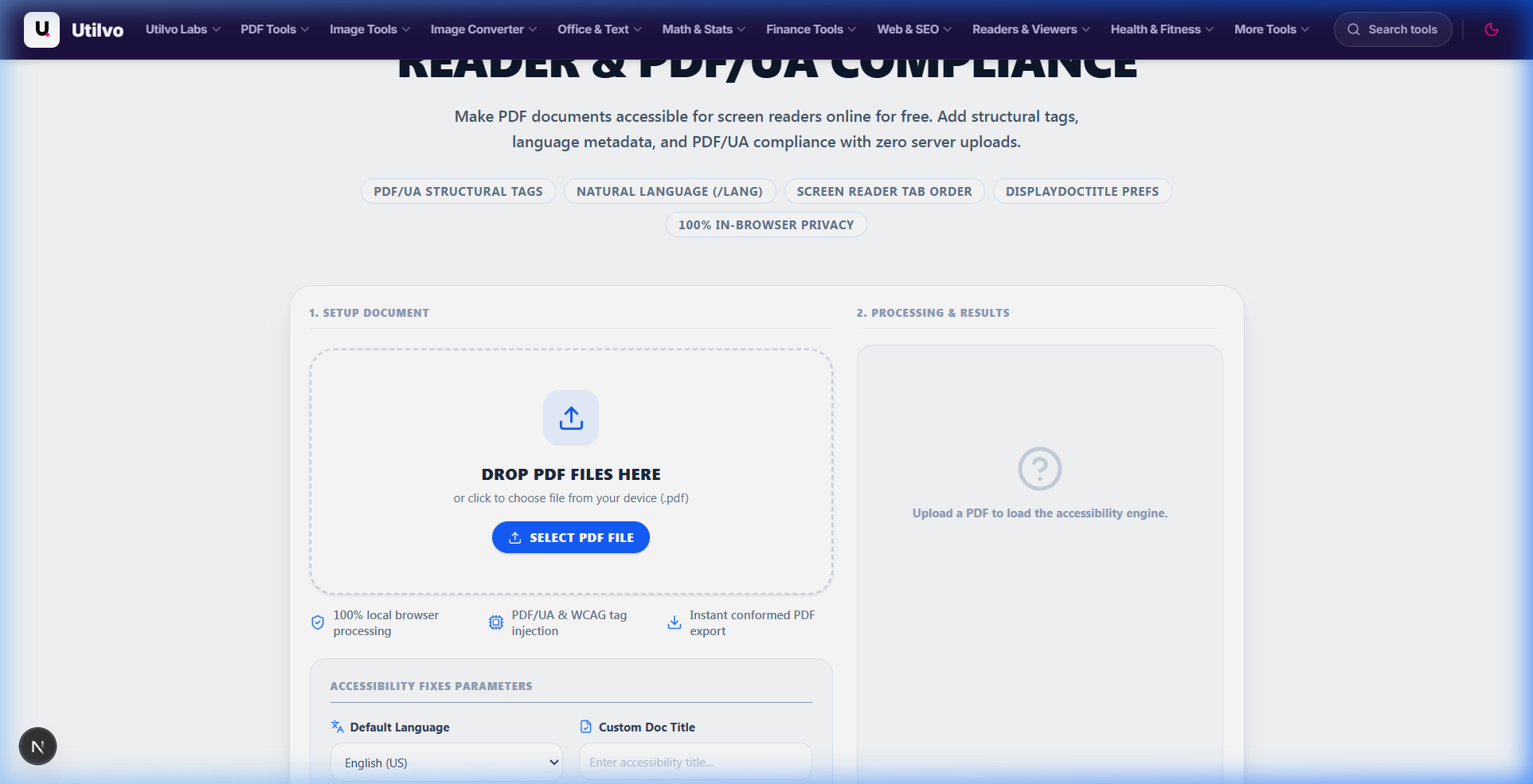
Figure 2: Configuring structural heading tags, language metadata, and PDF/UA parameters in Utilvo.
The Scanned PDF Trap: Why OCR Is Only Half the Solution
Scanned paper documents and exported flat bitmaps represent the single largest volume of inaccessible PDFs on the web. To software, a scanned PDF is an image envelope—a single bitmap with zero text.
The Two-Stage Scanned Document Remediation Pipeline
- Stage 1: Optical Character Recognition (OCR):Running our client-side OCR Tool synthesizes an invisible text layer directly behind the bitmap graphics. This enables text selection, copying, and basic search indexing. However, OCR only outputs strings and coordinates—it does not create semantic tags.
- Stage 2: Structural Tagging & Remediation:Once text glyphs exist, you must map the text blocks into the structure tree: assigning H1 titles, associating table grid coordinates into
<TH>and<TD>, and establishing logical reading order.
Technical Comparison: Utilvo vs. Adobe Acrobat Pro vs. PAC
Evaluating PDF accessibility solutions across engine privacy, compliance verification, and execution overhead:
| Evaluation Criteria | Utilvo Local Engine | Adobe Acrobat Pro DC | PAC (PDF Accessibility Checker) | Cloud Remediation Services |
|---|---|---|---|---|
| Processing Locus | 100% Client-Side WASM | Local Desktop App | Local Desktop App (Windows) | Remote Cloud Servers |
| Zero Server Privacy | Guaranteed Zero Upload | Local (Optional Cloud AI) | Local Native App | Document Uploaded |
| License & Cost | Free & Open Web | Expensive Monthly SaaS | Free (Freeware) | Per-Page / Subscription |
| Standards Validated | WCAG 2.1 AA & PDF/UA-1 | Acrobat Check & Section 508 | PDF/UA-1 & Matterhorn Protocol | Varies by vendor |
| Platform Portability | Any Browser (Mac/Win/Linux) | Win / macOS only | Windows only | Web browser |
Top 5 Accessibility Pitfalls and How to Prevent Them
1. Skipped Heading Levels
Jumping directly from an H1 to an H3 without an intervening H2 confuses screen reader users who navigate via heading shortcuts. Keep your heading hierarchy strictly contiguous.
2. Unmarked Decorative Artifacts
Background colored bands, dividing lines, and repetitive header/footer page numbers must be explicitly tagged as /Artifact. Leaving them as normal content forces assistive devices to read page numbers and decor lines in the middle of sentences.
3. Missing Table Header Scopes
Data tables must define <TH> elements with explicit /Scope /Row or /Scope /Column attributes. Without scopes, screen readers cannot contextualize numbers within complex multi-column matrices.
4. Redundant or Vague Alternative Text
Writing "image.png" or "chart" fails compliance audits. Alt text must concisely summarize the essential data payload, such as: "Bar chart illustrating a 24% increase in Q3 mobile browser usage."
5. Missing Document Title and Natural Language
If the document dictionary lacks /Lang (en-US), screen readers cannot select appropriate phonetic pronunciation libraries. If the title is missing, the window announces raw file names like "scan_final_v2_edit.pdf".
Key Takeaways: The Accessible PDF Checklist
- Structure over styling: An accessible PDF contains an invisible
/StructTreeRootdefining heading tiers, paragraphs, and list containers. - PDF/UA vs. PDF/A: PDF/UA (ISO 14289) governs screen reader accessibility; PDF/A (ISO 19005) governs archival reproduction. Major institutional filings require both.
- Scans need OCR plus tags: OCR provides a raw text layer, but tagging is mandatory to supply headings and reading order.
- Dual verification: Combine automated validation (Utilvo In-Browser Checker or PAC) with manual screen reader testing (NVDA or VoiceOver).
Frequently Asked Questions
What is a tagged PDF and why is it necessary for screen readers?
A tagged PDF contains an internal logical structure tree (/StructTreeRoot) composed of semantic markup elements (such as H1-H6, P, Table, and L) independent of physical coordinates on the page canvas. Sighted users see visual glyph streams painted on an x/y coordinate plane, whereas screen readers (NVDA, JAWS, VoiceOver) bypass graphical coordinates and traverse the tag tree in sequential reading order. Without semantic tags, a PDF renders to assistive technology as unstructured glyphs or complete silence.
How does PDF/UA (ISO 14289) differ from PDF/A (ISO 19005)?
PDF/A (ISO 19005) is an archival preservation standard requiring self-contained font embedding, color profile declarations, and the prohibition of external references, but it does not mandate semantic tagging or accessibility. PDF/UA (ISO 14289-1) is the universal accessibility standard requiring complete logical structure trees, contrast ratios, and alternative text descriptions. A document can be fully PDF/A-compliant while being totally unusable to a screen reader, and vice versa.
Can OCR make a scanned PDF accessible on its own?
No. Optical Character Recognition (OCR) only generates a raw invisible text layer matching recognized character glyphs to coordinates over scanned bitmap pixels. While OCR makes text searchable and selectable, it does not assign heading hierarchies (H1-H6), associate table headers (TH) with data cells (TD), define reading order, or inject alternative text for charts. Post-OCR tagging and remediation are mandatory to achieve true WCAG or Section 508 compliance.
Why do multi-column layouts fail screen reader reading order?
In raw untagged PDF content streams, operators render text in the sequence written by the export driver. Often, the rendering engine writes line 1 of column A followed immediately by line 1 of column B horizontally across the physical page. Assistive tools reading content streams linearly will read across columns instead of down column A and then down column B. A properly structured tag tree enforces the logical reading order regardless of visual layout positioning.
What free automated and manual tools should be used to verify PDF accessibility?
Automated validation should be performed using the PDF Accessibility Checker (PAC 2024), veraPDF for ISO standards, or Utilvo's in-browser WCAG / PDF/UA validator. However, automated checkers cannot evaluate subjective criteria like alt text accuracy or table sense. Manual verification with open-source screen readers like NVDA on Windows or Apple VoiceOver on macOS is necessary to confirm practical reading flow and keyboard navigation.
Related tools
PDF Accessibility Checker
Audit PDF documents for WCAG 2.1 AA and PDF/UA-1 structural compliance client-side.
Make PDF Accessible
Inject structural tags, document language metadata, and screen reader navigation in your browser.
OCR PDF
Transform flattened scanned pages and bitmap images into selectable, accessible text streams.
PDF to PDF/A
Standardize documents into ISO 19005 archival formats with embedded fonts and color profiles.
Related guides
How to OCR a PDF and Extract Text
Extract editable text from scanned paper documents, screenshots, and image-only PDFs with client-side OCR.
PDF to Word Conversion: Keeping Formatting Intact
A comprehensive guide to converting PDF documents to editable Word files while preserving layouts.
How to Merge PDF Files: Step-by-Step Guide
Combine multiple PDF documents into a single cohesive file locally in your browser with zero uploads.